Sessions & proctoring
Cheating reports
Review and filter cheating reports, confirm or reject a report, and understand how its status can change.
Last updated
This page lets you manage and review detected cheating reports.
Open the page
From the side menu, click Sessions & Monitoring and then choose Cheating reports.
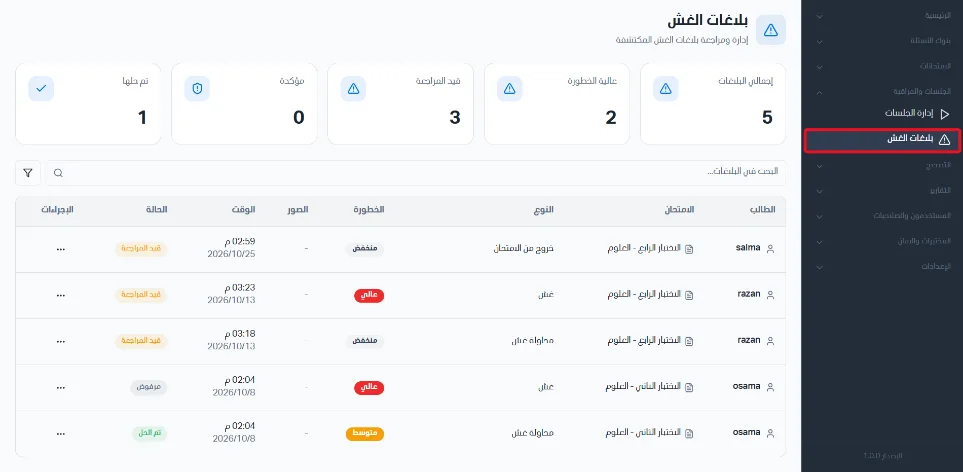
Stat cards and filters
Five stat cards appear at the top of the page:
Total reports: the number of cheating reports.
High severity: the number of high-severity cheating reports.
Under review: the number of cheating reports under review.
Confirmed: the number of confirmed cheating reports.
Resolved: the number of resolved cheating reports.
You can search for reports with the search bar, and filter them by:
Severity (low / medium / high / all).
Status (under review / confirmed / rejected / resolved).

The reports table
Reports are shown in an organized table with the following data:
Student: the student's name.
Exam: the exam name.
Type: the violation type.
Severity: the report's severity level (low / medium / high).
Images: images attached to the violation.
Time: the time and date of the violation.
Status: the report status (under review / confirmed / rejected / resolved).
Actions: the actions available on the report.

Actions on a report
View details: review the report details (student name / user ID / exam / severity / status / time / incident ID / incident).
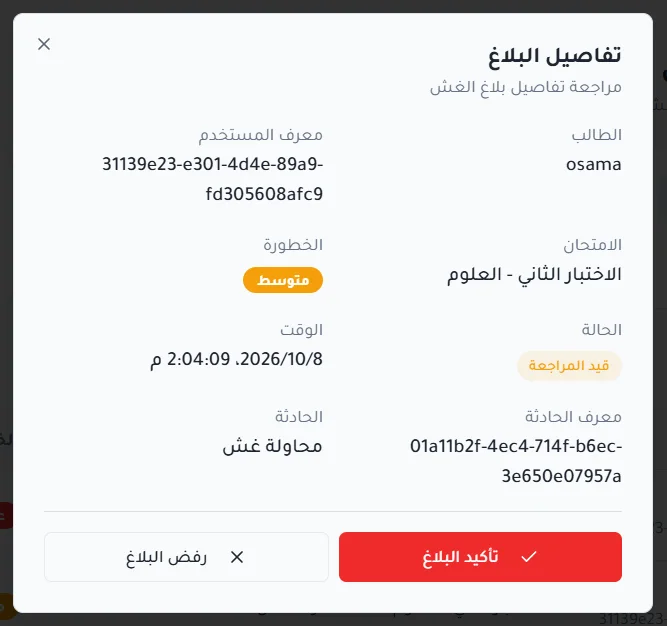
Confirm report: change the report status to 'Confirmed'. After a report is confirmed, its status can be changed to 'Resolved', and once it is changed to 'Resolved' its status cannot be changed again.
Reject report: change the report status to 'Rejected'. The status can later be changed to 'Confirmed' if the report is approved.
