Reports
Rubric statistics and keyword coverage
Review statistics for grading with rubrics and AI, and keyword coverage in student answers.
Last updated
This section covers the rubric and AI grading pages: rubric statistics, rubric answers, keyword coverage, and keyword answers.
Rubric statistics
This page shows the results of grading questions that are graded with a rubric. In the first section (grading and review summary), click Refresh to reload the numbers. Three summary cards appear:
Students with graded results: the number of students whose answers have been fully graded.
Students awaiting completion of grading: students whose grading is not yet complete.
Answers that need review: answers that are recommended for manual review.

Click Review count details to see the number of answers awaiting grading, the number of low-confidence suggestions, and the number of AI suggestions awaiting a decision.

Section 2 (statistics per question): at the top of the card you will see: the question number, type, and number of versions; the number of graded answers counted; the number of answers that need review; and the number of answers that differ between the teacher's grading and the AI's. Click the View rubric answers button to go to the rubric answers.
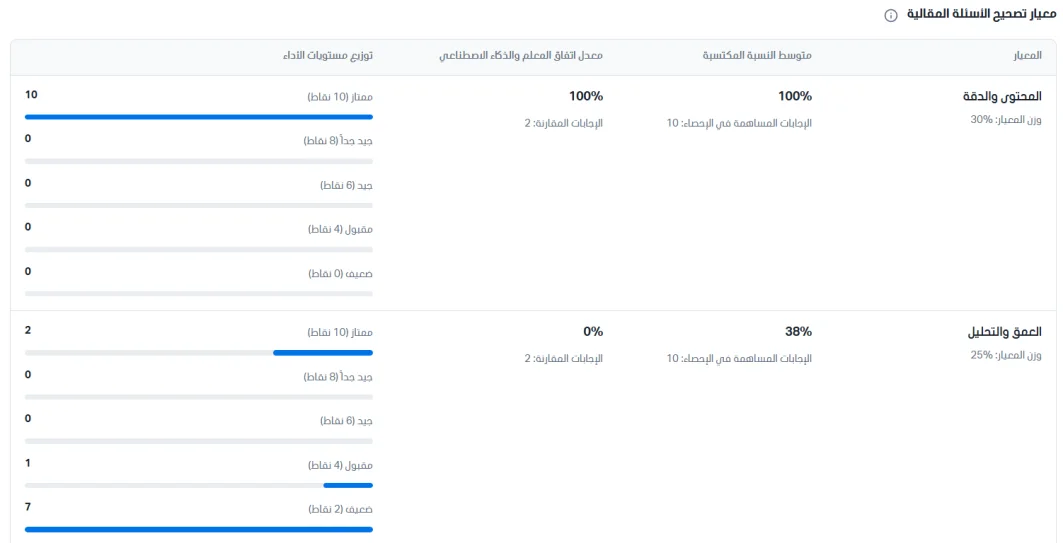
Essay question grading rubric: a table showing each axis of the rubric with its weight and statistics:
Criterion: the axis name and its weight.
Average ratio earned: the average of what students earned out of the axis's full points, with the answers contributing to the statistic beneath it.
Teacher-AI agreement rate: the rate at which the teacher's evaluation agrees with the AI's evaluation on this axis, with the compared answers beneath it.
Performance level distribution: the number of students at each level of the axis, with a bar showing its share.
Performance levels: excellent (10 points), very good (8), good (6), acceptable (4), and weak. The points beside each level come from the rubric itself. For example, on the Depth and Analysis axis: two students with 10 points, one student with 4, and seven students with 2: a total of 38 out of 100, or 38%.
Click Mark sources for this question to see how each answer's mark was obtained:
The number of answers awaiting grading (not graded yet).
The number of AI suggestions that were approved (the AI graded and the teacher approved the result).
Result override (the number of results the teacher changed manually, overriding the rubric result).
Teacher rubric evaluation (the number of questions the teacher graded using the rubric).
Mark without rubric results (the number of marks entered without results for the axes).

Rubric answers
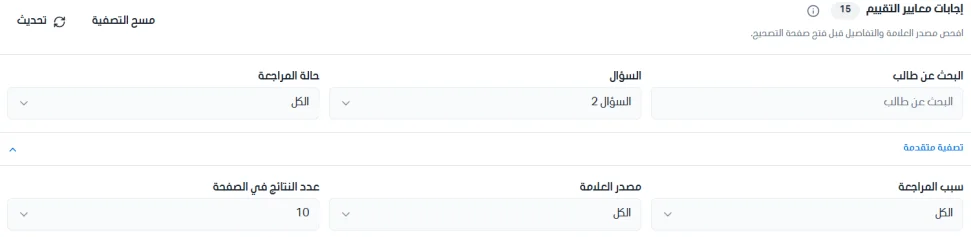
This page lists the student answers that were graded with rubrics, showing each answer's approved mark, the source of that mark, and whether it needs review. You can search for a student by name and filter by question and review status. Click Advanced filter to filter the list by review reason, mark source, or number of results per page, click Clear filter to remove all filter conditions, and click Refresh to reload the data.
The answers table contains the following information:
Student: the student's name.
Question: the question number and text. A "Counted attempt" label appears beneath it to show that this is the attempt counted in the student's result.
Approved evaluation: the approved mark for the answer out of the question's full mark (for example, 3.6 / 5).
Mark source: how the mark was obtained. "Teacher rubric evaluation" means the teacher graded the answer themselves using the rubric, and "Approved AI suggestion" means the AI graded the answer with the rubric and the teacher approved the result.
Review status: whether the answer needs review.
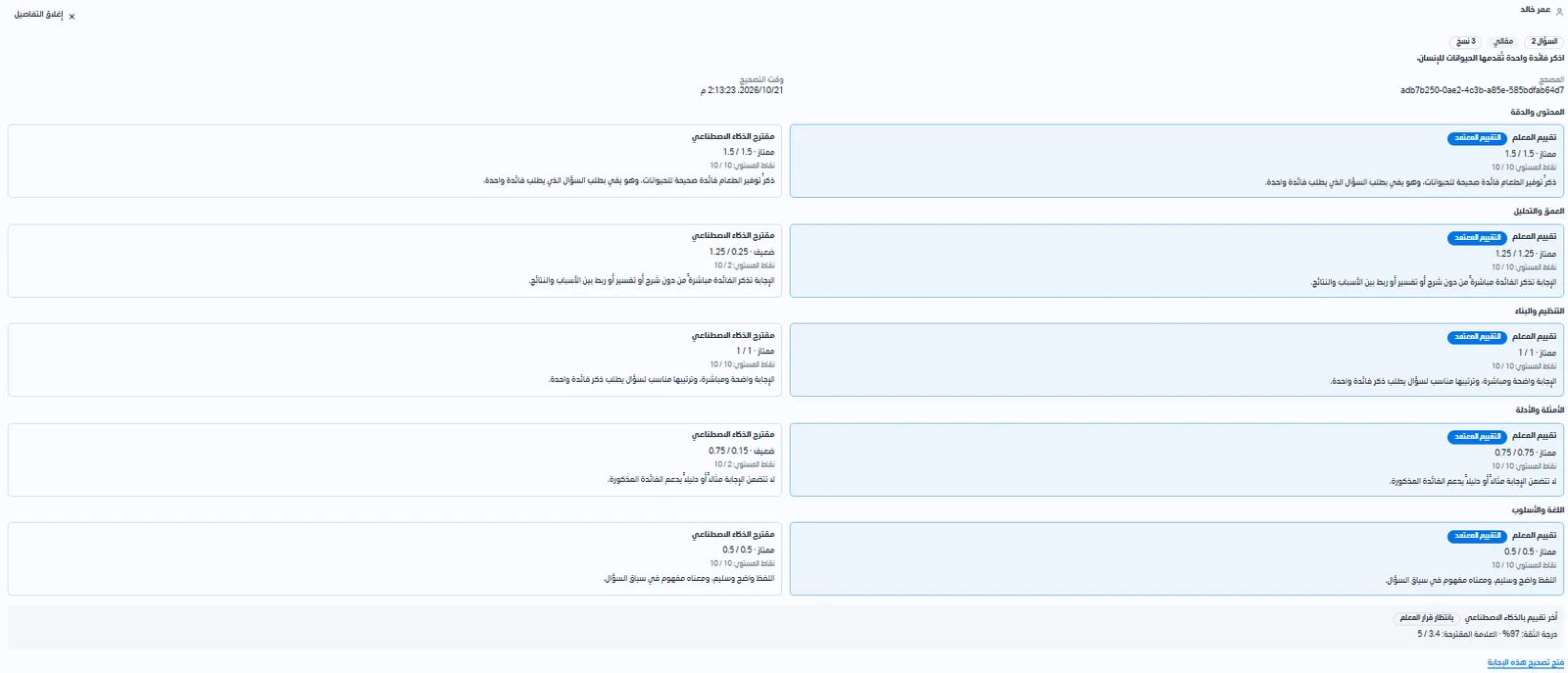
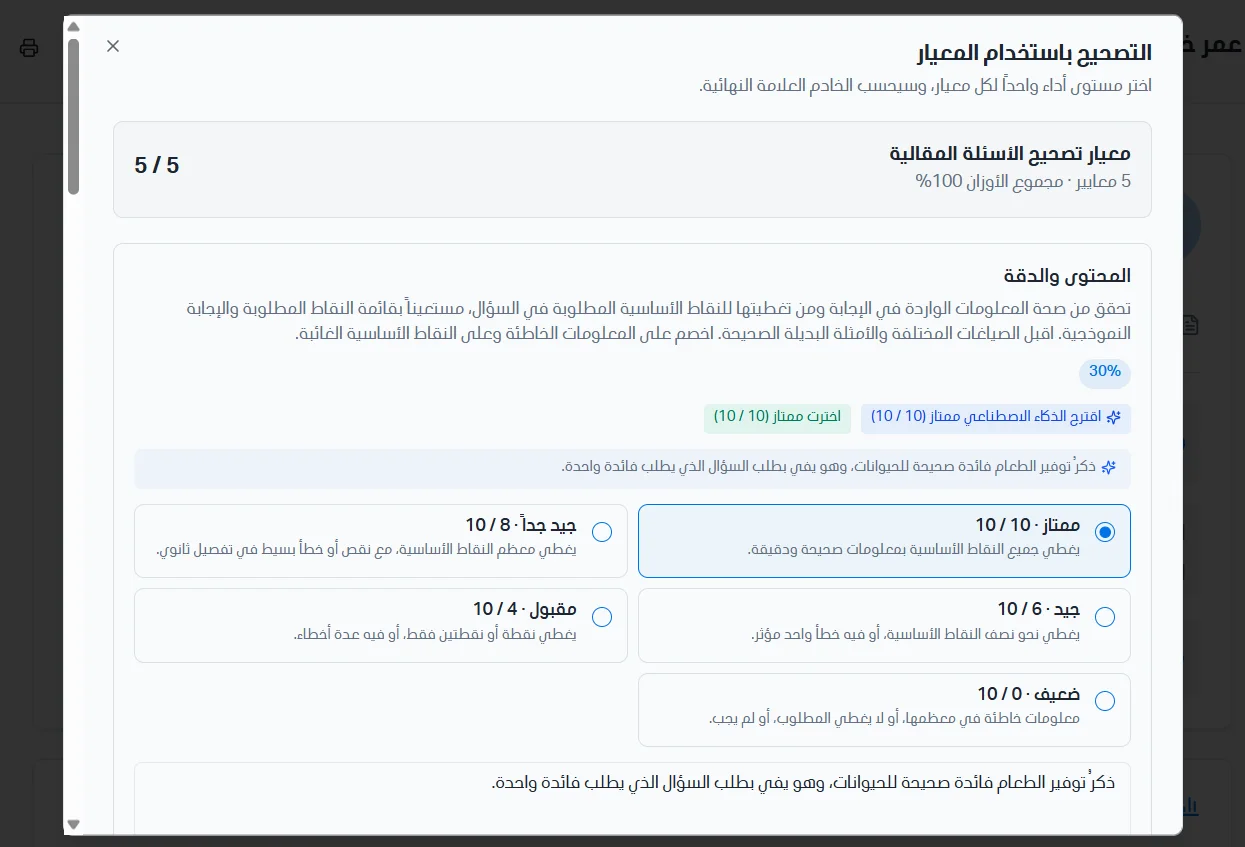
Evaluation details: click Details to expand the row and show the answer's evaluation details (the student's name; the question number, type, and number of versions; the question text; the grader's ID; the grading date and time; and the Content and accuracy part, which compares the approved evaluation with the AI suggestion).
Keyword coverage
This page shows how often the expected keywords appear in student answers to questions that have keywords defined. Click Refresh to reload the numbers. The data is based on each student's counted completed attempt, even if its grading is not complete, and the keywords vary according to the question version the student answered.
Each question's statistics are shown on a separate card, which includes: the question number, type, and number of versions; the question text; the number of counted answers; the number of available coverage; and the number of times evaluated without AI. Click View keyword answers to go to the keyword answers.

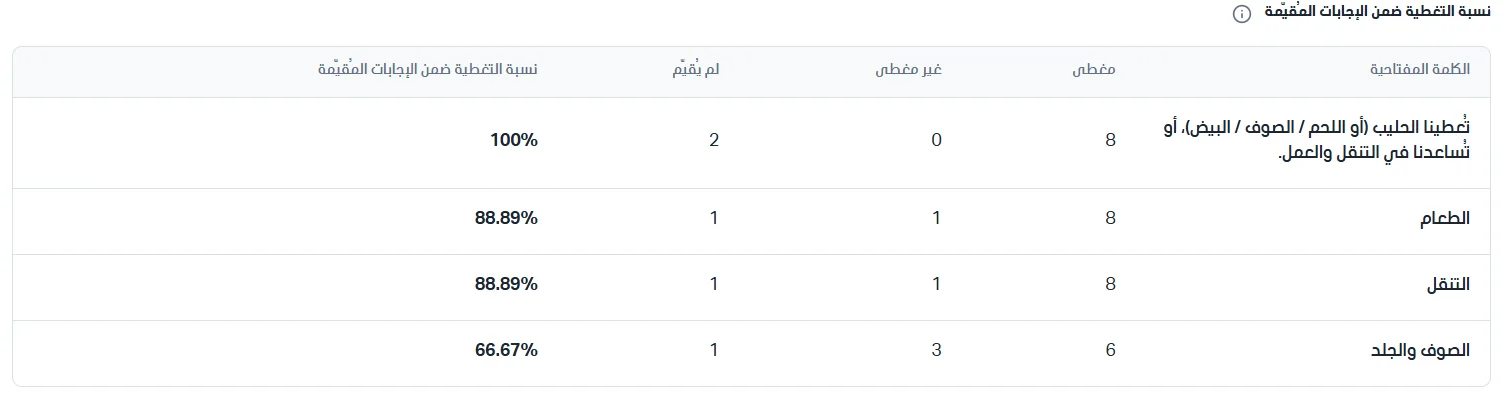
Coverage rate among evaluated answers: the table shows each keyword in the question and whether it appeared in students' answers:
Keyword: the word or phrase expected to appear in the answer.
Covered: the number of answers in which the word appeared.
Not covered: the number of answers in which the word did not appear.
Not evaluated: the number of answers that were not evaluated for this keyword.
Coverage rate among evaluated answers: the share of evaluated answers in which the word appeared.
Click Coverage and AI evaluation details to see the latest AI evaluation (accepted: the number of evaluations in which the teacher accepted the AI's evaluation; rejected: the number of evaluations in which the teacher rejected the AI's evaluation; awaiting teacher decision: the number of evaluations the teacher has not yet decided on), and the coverage data (coverage data unreadable: answers whose coverage could not be read; items not matching keywords: items in the evaluation that do not match the defined keywords).

Keyword answers
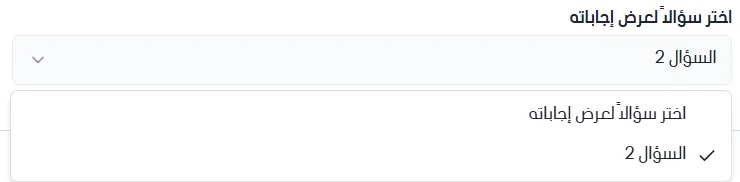
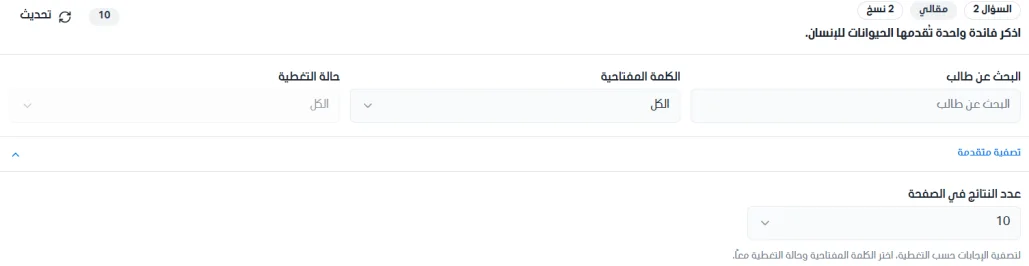
This page shows the keyword coverage details in each answer. First choose a question from the list to show its answers; the question number, type, and number of versions, the question text, and the number of answers then appear. Click Refresh to reload the data. You can search for a student by name, filter results by keyword and coverage status, and control how many results are shown per page. The answers table contains:
The student's name.
Approved evaluation: the approved mark for the answer.
Mark source: the approved evaluation rubric.
Coverage rate among evaluated answers.
Answer excerpt: click Details to see the data.
AI evaluation status: "Accepted" (the teacher accepted the AI's evaluation), "Awaiting teacher decision" (the AI evaluated the answer and the teacher has not decided yet), and "No AI evaluation was done" (this answer was not evaluated by AI, so no coverage data is available).
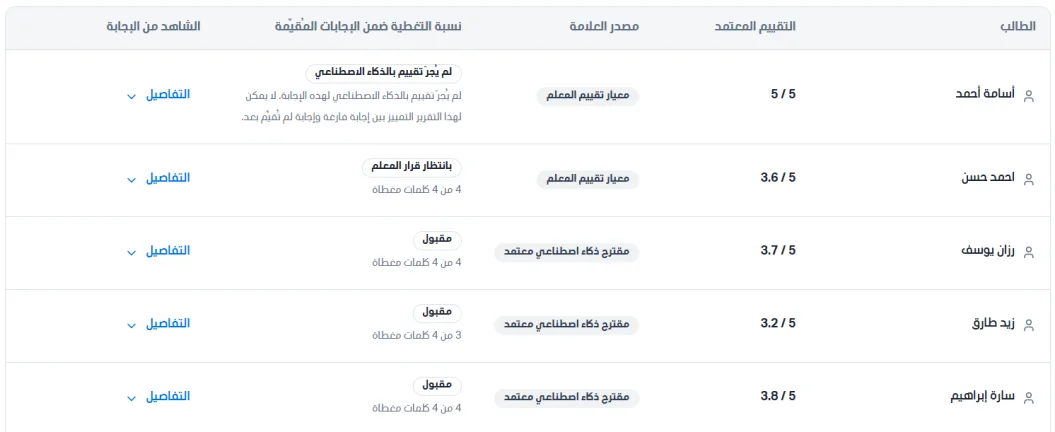
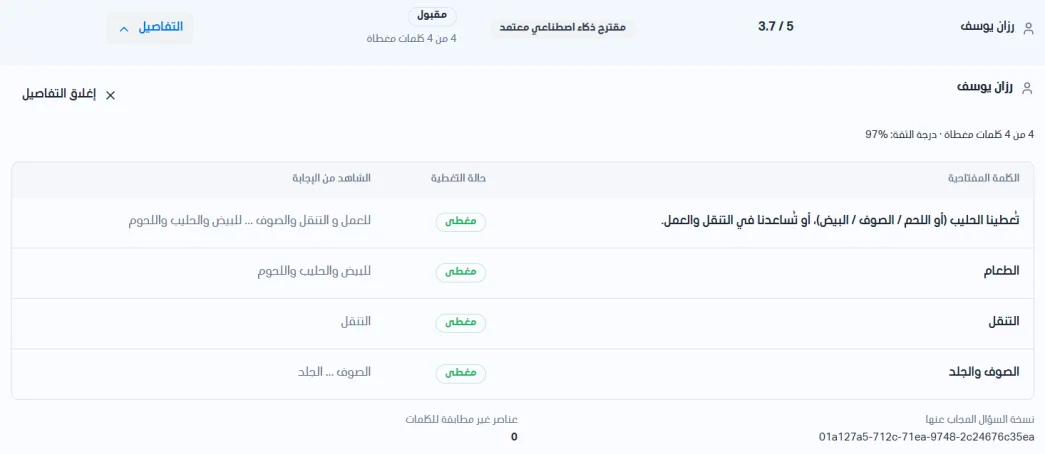
Click Details beside any student to see the coverage summary (the number of covered keywords and the confidence level, for example: 4 of 4 keywords covered, confidence 97%, which is how confident the AI is in its evaluation), and the keyword table, which contains: the keyword (the expected word or phrase), the coverage status (covered or not covered), the answer excerpt (the passage from the student's answer that showed the word appeared, with ... separating different passages), the answered question version (the ID of the question version the student answered, since keywords may differ by version), and items not matching keywords (the number of items that do not match the defined keywords, for example 0).