Users & permissions
Group details and managing members
Learn about the group details page, its actions and notes on managing members.
Last updated
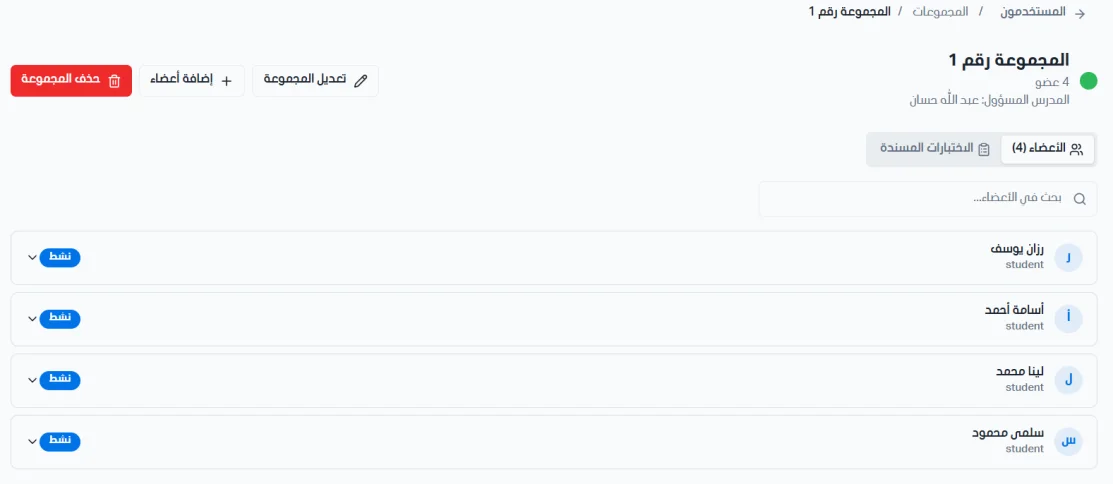
The group details page shows the group's information and members, and lets you edit the group and manage its members and assigned exams.
View group details
When you click View details for a group, a page opens with the group's information, including:
The group name.
The number of members.
The name of the teacher responsible for the group.
The member list, with each student's name and account status.
Actions on the page
The page includes these actions:
Edit group: edit the group's details.
Add members: add students to the group.
Delete group: delete the group.
Members: view the students in the group; you can also remove members from the group.
Assigned exams: view the exams assigned to the group and remove them from it.
Assign exam: assign an exam to the group, choosing which exam to assign.
Notes on group members
You can add students to the group using the Add members option.
A student whose account is inactive cannot be added to the group.
When you add members to the group, the list of students available to select appears, and students with inactive accounts do not show in it.
If a group member's account becomes inactive, the student remains in the group's member list, with a note that their account is inactive.
A student can be removed from the group even if their account is inactive, through the member management actions.
