Users & permissions
The roles and permissions page
Learn the elements of the roles and permissions page and the default roles in the system.
Last updated
The roles and permissions page lets you manage user roles in the system and see the permissions linked to each role and the number of users who have it. It also lets you create custom roles, and view, edit and delete them.
Open the page
From the side menu, click Users and permissions then choose Roles and permissions.
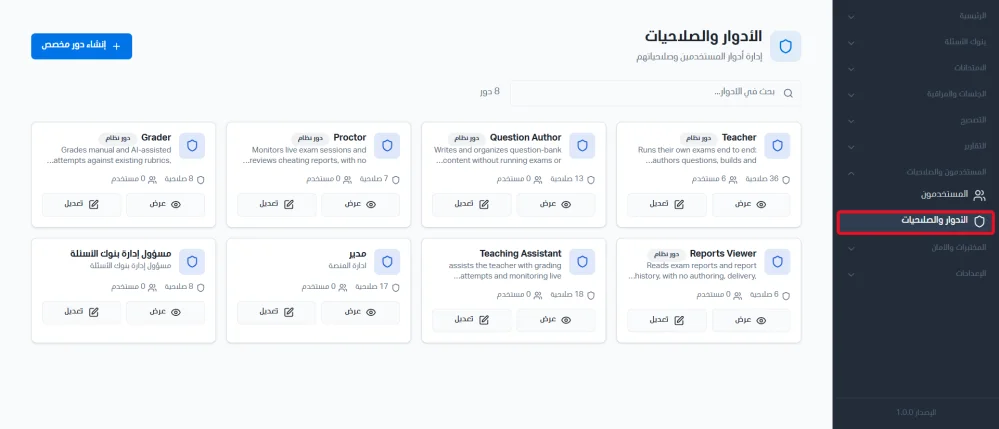
Page elements
Create custom role button: opens a form to create a new role and set its permissions.
Search field: to search for a specific role.
Role card: shows the role name, its type (custom or system role), a short description, the number of permissions and the number of users linked to it.
Edit button: to edit the role's details and permissions.
View button: to see the role's details and permissions.
Delete button: to delete a custom role.
Default roles in the system
Teacher: fully manages their own exams: writes questions, builds and publishes exams, grades and publishes attempts, and proctors live sessions.
Question author: creates and organizes question bank content, without permission to run exams or see student results.
Proctor: monitors live exam sessions and reviews potential cheating reports, without permission to create content or see results.
Grader: grades attempts manually or with AI assistance according to the defined rubrics, without permission to create questions or manage exams.
Reports Viewer: sees only exam reports and the reports log, without permission to create content or run exams.