Question banks
The curriculum structure: overview
Learn about the curriculum structure page, its cards, the content tree and how to add a new item.
Last updated
The curriculum structure page lets you build a hierarchy of subjects and grades and link it directly to question banks, so exams are organized precisely.
Open the page
From the side menu, click Question banks then choose Curriculum structure.
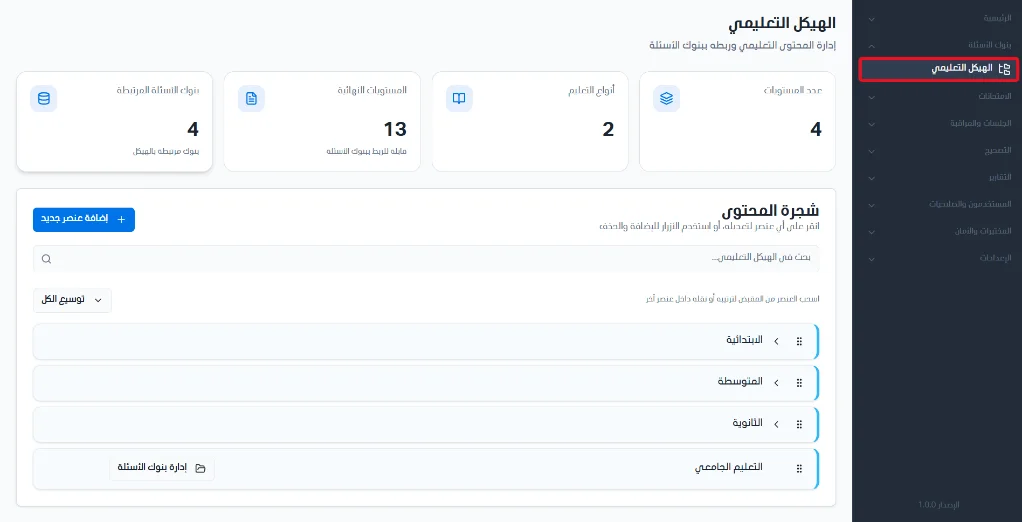
Statistic cards
Four statistic cards appear at the top of the page, giving a quick view of the size of the educational content:
Number of levels: shows the number of main layers in the structure.
Education types: reflects the available education classifications.
Final levels: indicates the levels where branching has ended and which are ready to be linked to question banks.
Linked question banks: the number of active banks actually linked to the curriculum structure.

The content tree
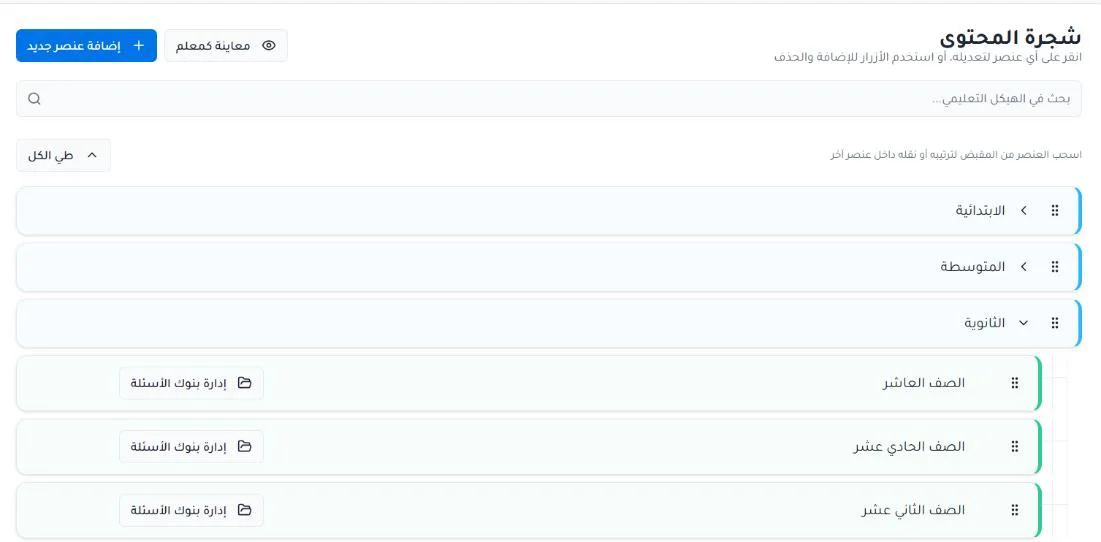
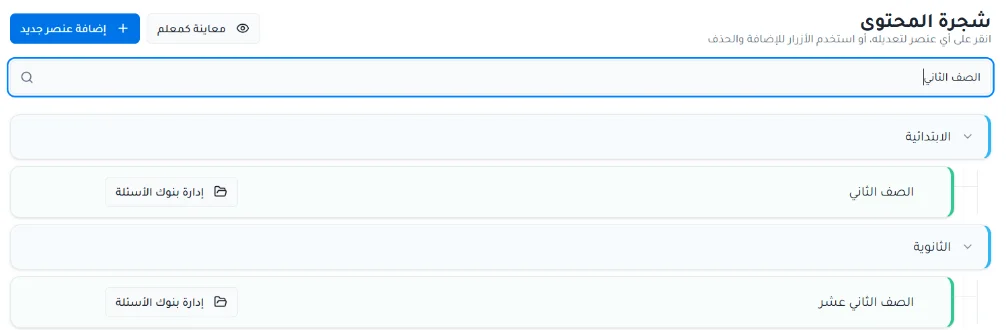
The tree shows the items and educational levels and how they relate to each other, with the number of question banks linked to each item when available, so you can browse and edit easily. Use the search bar to search within the tree and quickly reach a specific item.
Add a new item
Click + Add new item to add a new item to the first level of the curriculum structure.
Enter the name.
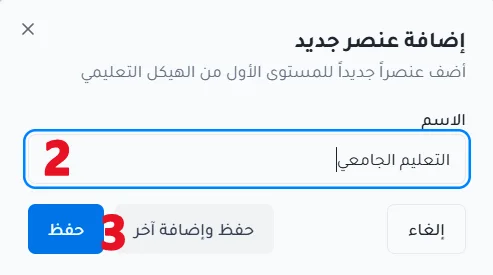
Click Save, or Save and add another to add more levels.
Other tree tools
Click Preview as teacher to see the curriculum structure as teachers will see it.
Click Collapse all or Expand all to hide or show sub-items.
Drag an item to reorder it or move it inside another item.
