Getting started
Notifications and the notifications page
Learn which notifications you receive for your role and how to manage them on the notifications page.
Last updated
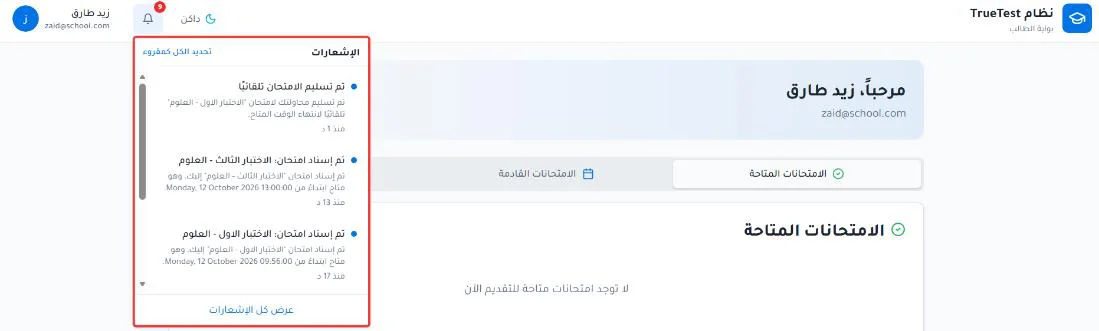
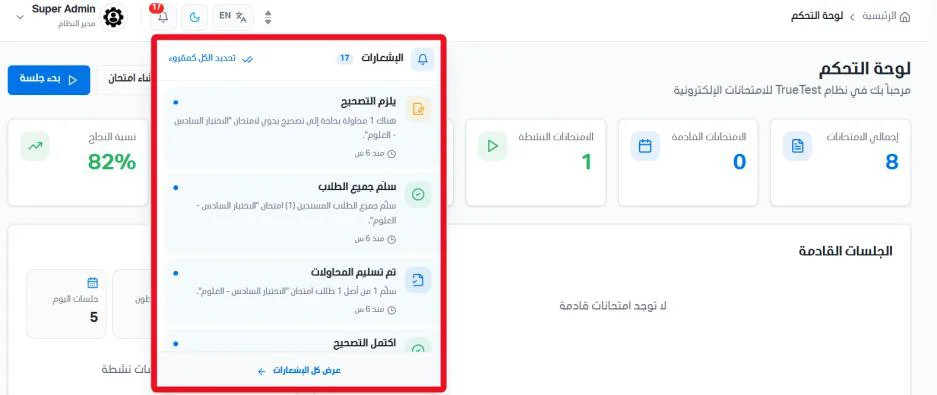
Notifications reach you from the top bar, and the types you get depend on your role. You can manage all of them from the notifications page.
Notifications for teachers and staff
When AI grading is complete.
When a student submits the exam.
When a high-severity violation occurs.
When all of a student's attempts for this exam are complete.
When attempts are waiting for manual grading.
Notifications for students
When a new exam is assigned to the student.
When exam results are published.
When the exam submission window is about to close.
When the allotted time ends and the attempt is submitted automatically.
When scheduled exam results are announced automatically.
Open the notifications page
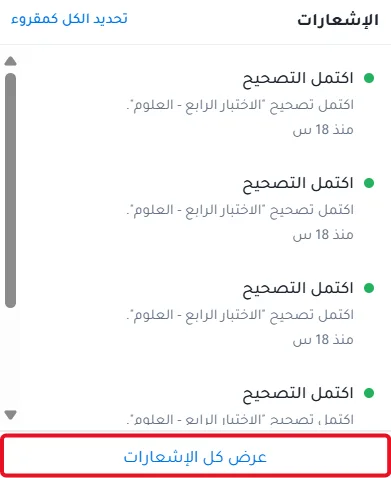
Open the notifications menu from the top bar.
Click View all notifications.
Statistic cards
Three statistic cards appear at the top of the page:
Total notifications: the total number of notifications in the system.
Unread: the number of unread notifications.
Read: the number of read notifications.
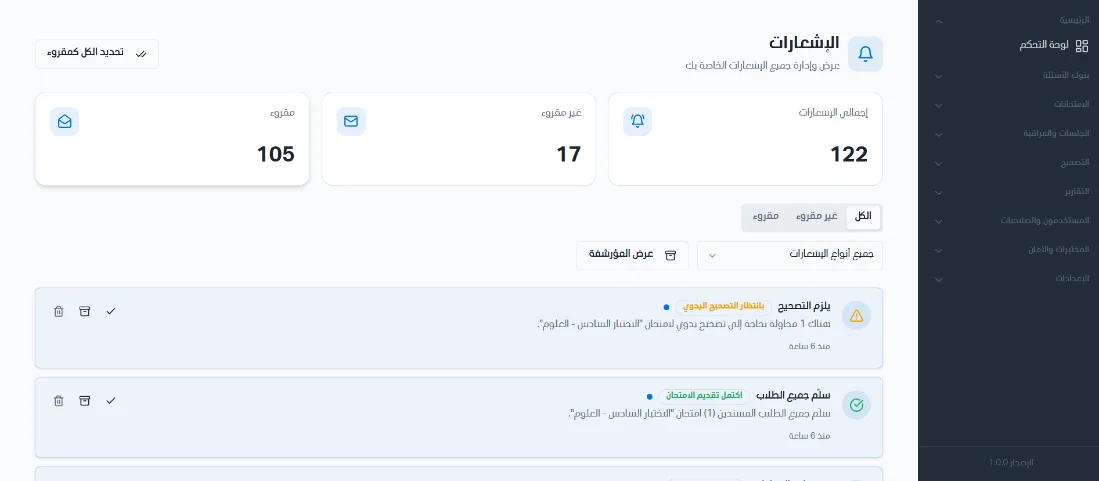
Managing notifications
Click Mark all as read to read all notifications.
Filter notifications by status: read or unread, or show all notifications.
Click View archived to show notifications saved in the archive.
Click the check icon to mark a notification as read.
Click the box icon to archive a notification.
Click the trash icon to delete a notification.