Grading
Grade manually
Open an exam's grading page, review students and their answers, then enter and save points.
Last updated
In manual grading you review students' answers, compare them with the model answer, and then enter points.
Start grading
In the grading queue, click Start grading for the exam you want.
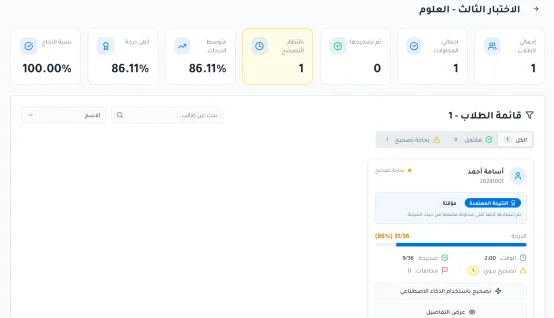
Seven stat cards appear at the top of the exam's grading page:
Total students: the number of students who took the exam.
Total attempts: the number of attempts submitted for the exam.
Graded: the number of attempts that have been graded.
Awaiting grading: the number of attempts waiting to be graded.
Average score: the average score of the attempts.
Highest score: the highest score achieved in the exam.
Pass rate: the percentage of students who passed the exam.

The student list
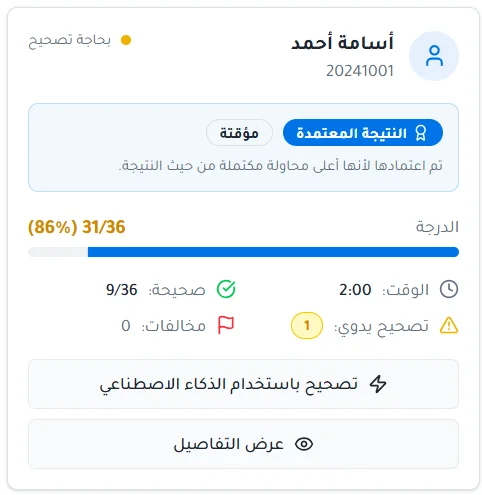
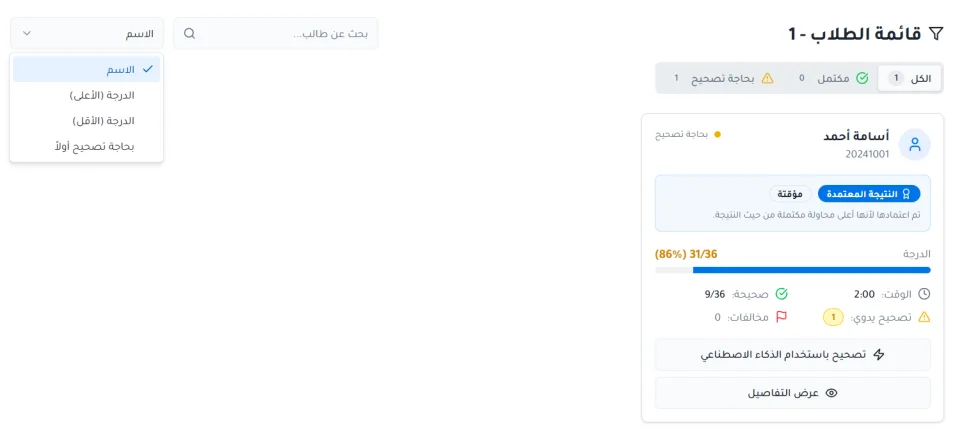
Students appear in organized cards containing the following information:
Student name, photo and academic ID.
The official result.
The time spent answering the exam questions.
The number of correct answers.
The number of questions that need manual grading.
The number of violations.
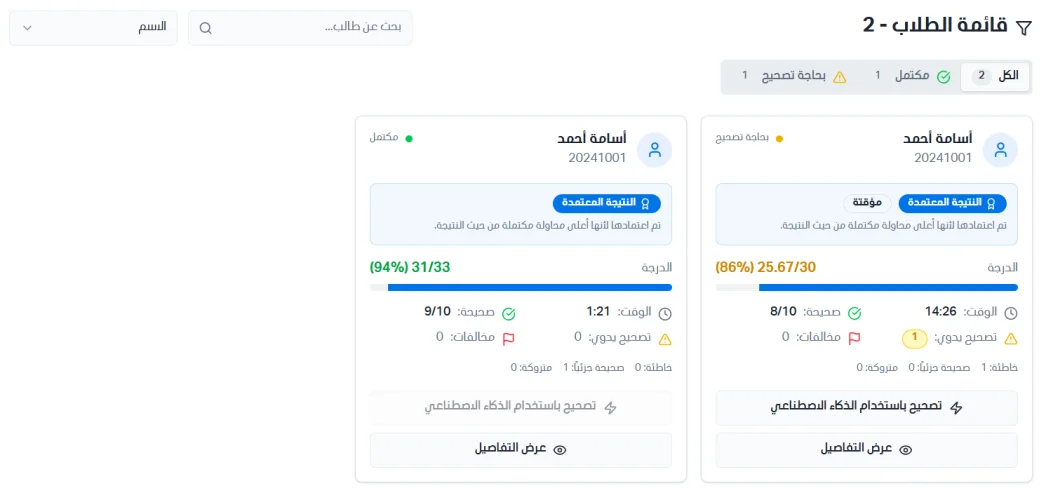
You can view all students, those whose grading is complete, or those who need grading. You can search for students with the search bar and sort them by name, highest score, lowest score, or needs grading first.
Student details
Click View details for a student. The page includes:
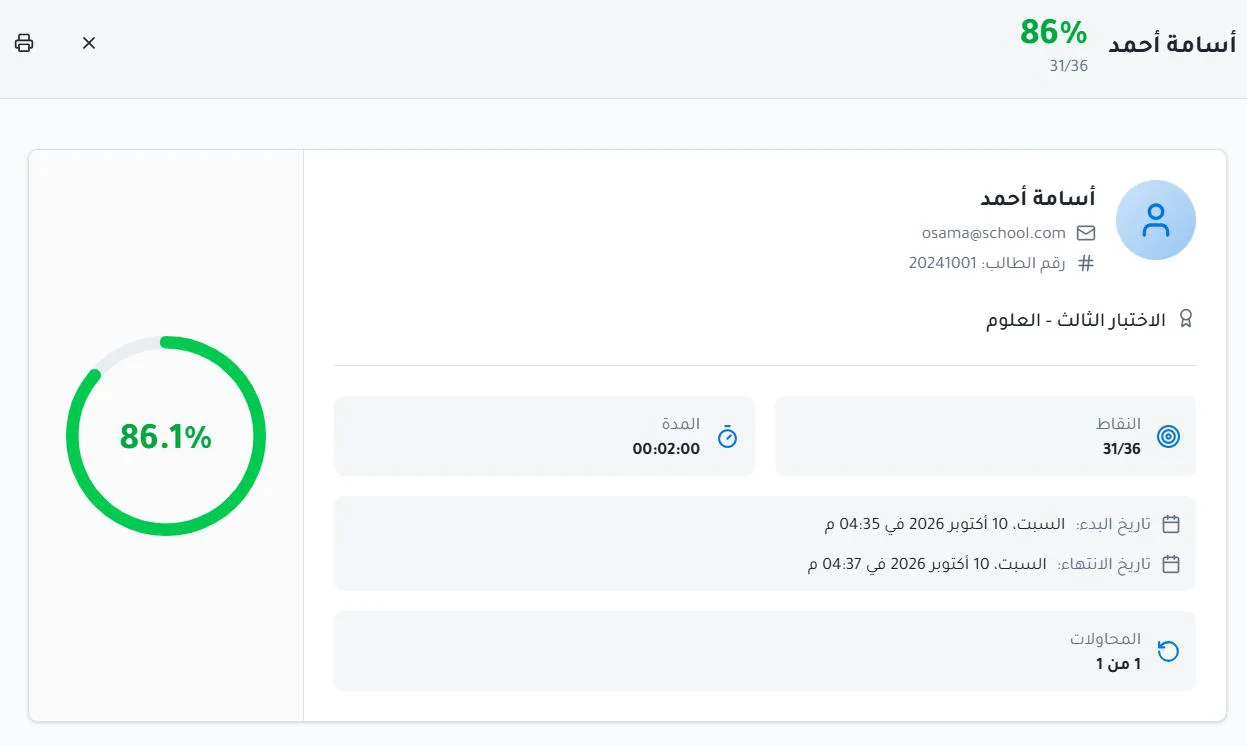
Basic information: the student's name, email and academic ID, the exam name, the exam start and end date and time, the number of attempts, and the score the student received.
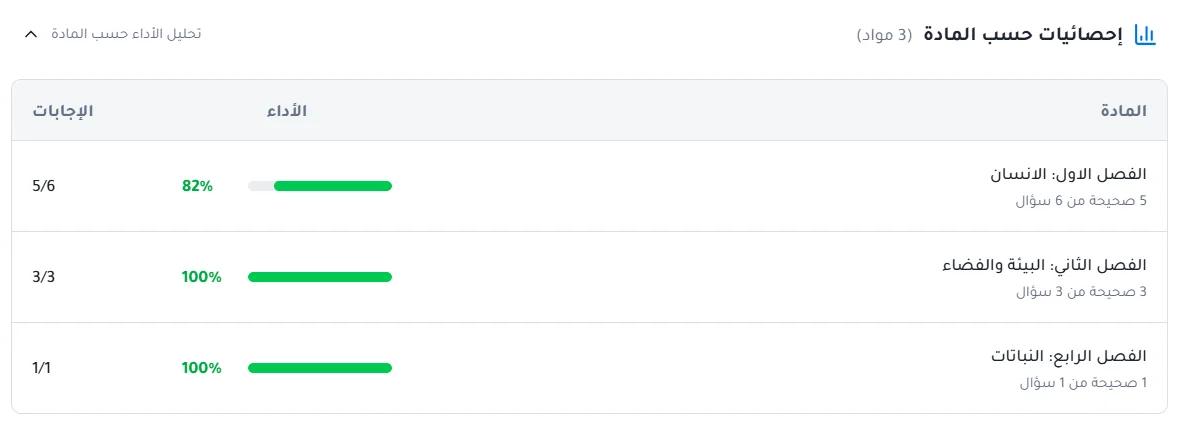
Statistics by subject: a performance analysis by subject.
Answers: the full details of the answers: the question, the model answer, the student's answer, and the points the student received for the question.
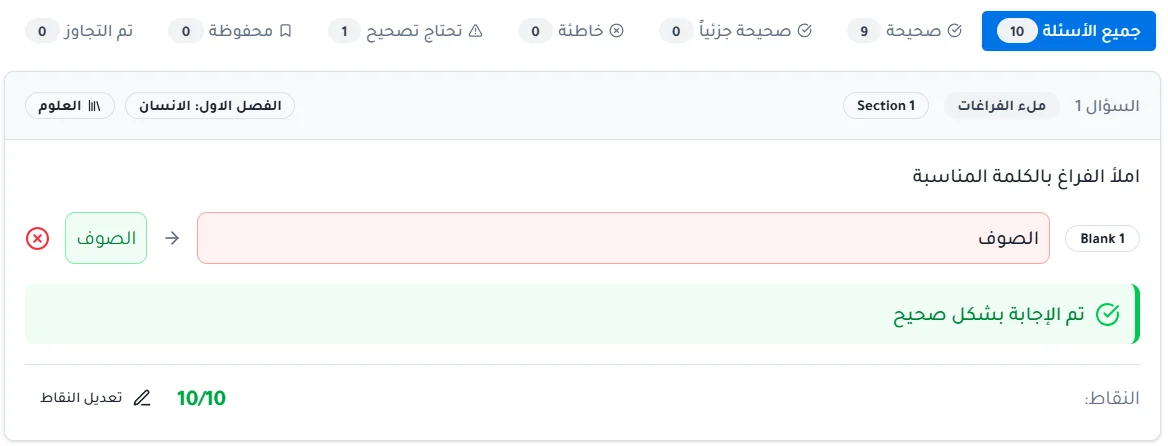
You can filter the answers by status: all questions, correct, partially correct, incorrect, needs grading, saved, skipped.
Grade the questions
Browse all questions or click Needs grading.
Review the student's answer and compare it with the model answer.
Click Open grading form.
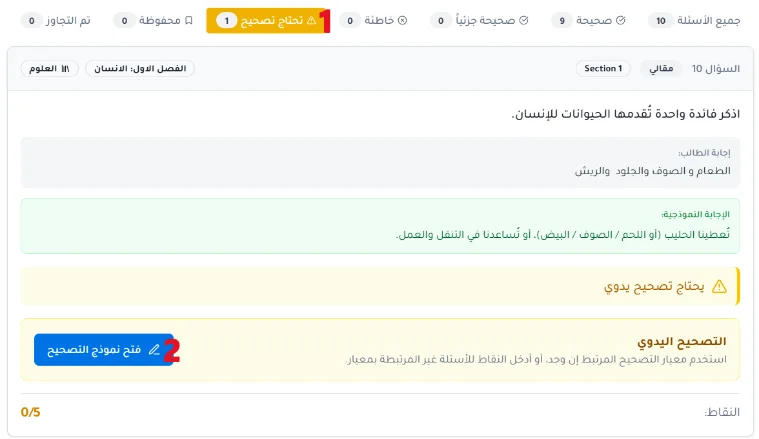
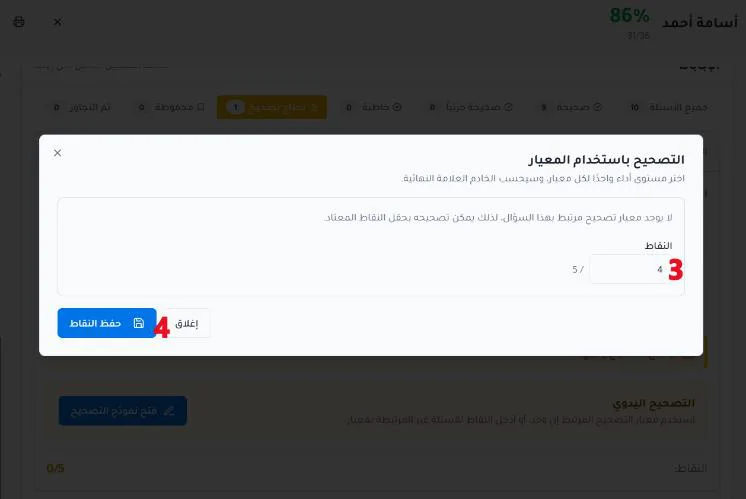
Enter the points.
Save the points.