Users & permissions
Add teachers
Learn how to add one teacher manually or import several teachers at once from an Excel file.
Last updated
When you click Add teacher on the Users page, the system offers two options: individual add or bulk import.
Option 1: Add one teacher
Use this to add a single teacher manually. Enter the following details:
Full name (required).
Email (required).
Permission group (required).
Password (required).
Academic ID (optional).
National ID (optional).
Account is active: an option that sets whether the teacher's account is active.
Enter the teacher's details in the fields above.
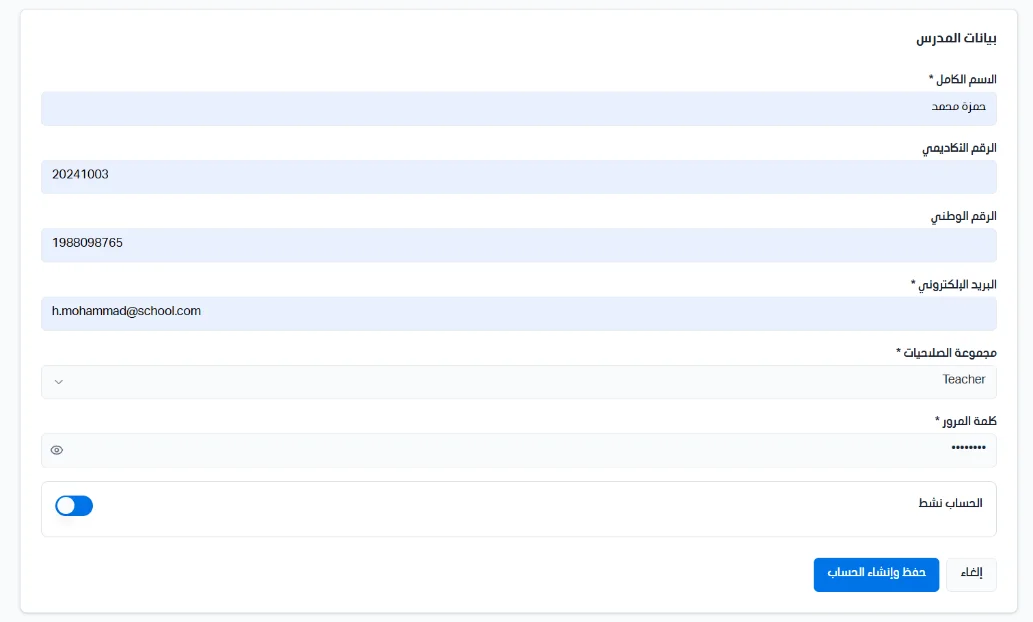
Click Save and create account to create the account, or Cancel to back out.
Option 2: Bulk import
Use this feature to add several staff members through an Excel file.
Click Download template. To make sure your data is compatible with the system, you must use the platform's approved template. The system downloads a ready-to-fill Excel file.
Open the file you downloaded and fill in the columns described below.
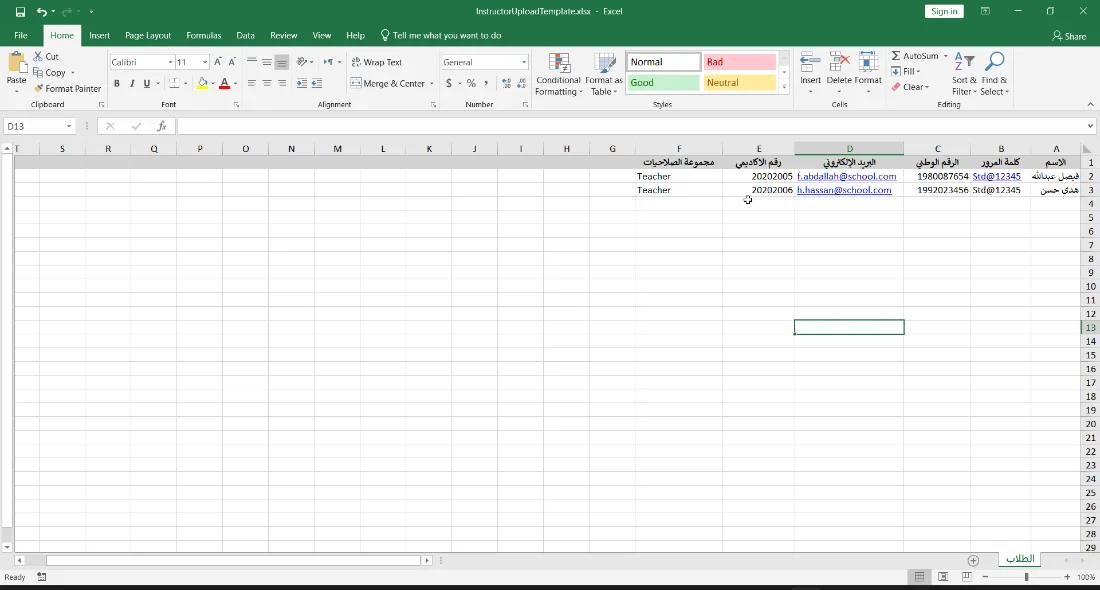
Return to the staff import screen in the browser, click Choose file, then select the Excel file you filled in. The system supports xlsx and xls files.
File columns:
Name (required): the teacher's full name.
Password (required): the password for the teacher's account.
National ID (optional): the national identity number.
Email (required): the teacher's email, used to log in and receive notifications.
Academic ID (optional): the teacher's identification number.
Permission group (required): the teacher's permissions, for example Teacher.
Make sure the same email is not used for different teachers.
Group names entered in the Excel file should already exist in the system, to avoid linking errors.
Make sure the file has no empty cells in the required fields.
