Settings
Notification settings
Control push notifications, in-app notifications, and critical-only alerts.
Last updated
The Notifications page lets you configure the notifications and alerts you receive.
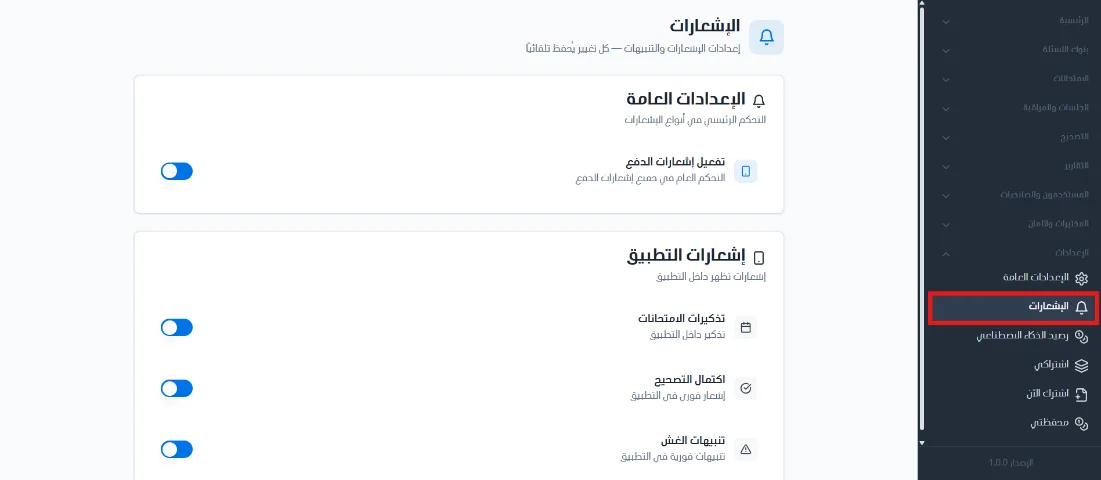
Open the page
From the side menu, click Settings.
Choose Notifications.
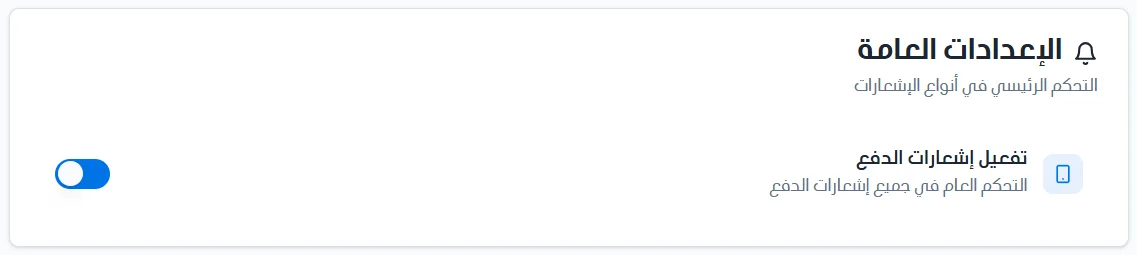
General settings
This section controls push notifications overall. It is the master switch that determines whether these notifications reach you. Use Enable push notifications to turn all push notifications on or off with one click.
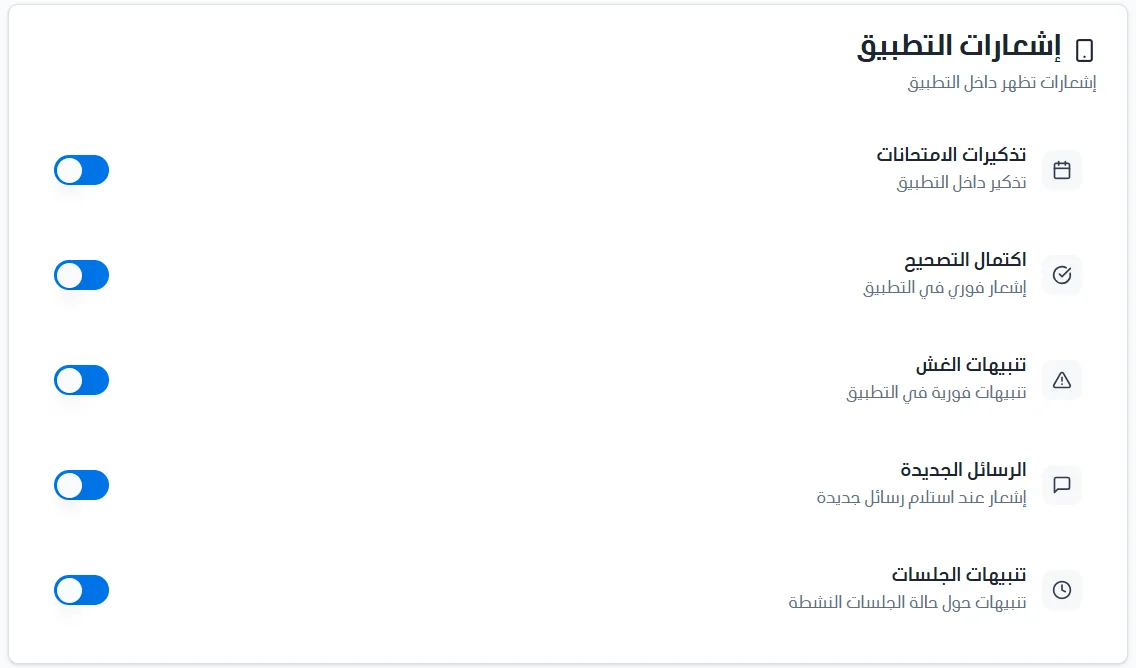
In-app notifications
To control the notifications that appear inside the app, you can turn on or off:
Exam reminder notifications.
Grading completion notifications.
Cheating alert notifications.
New message notifications.
Session alert notifications.
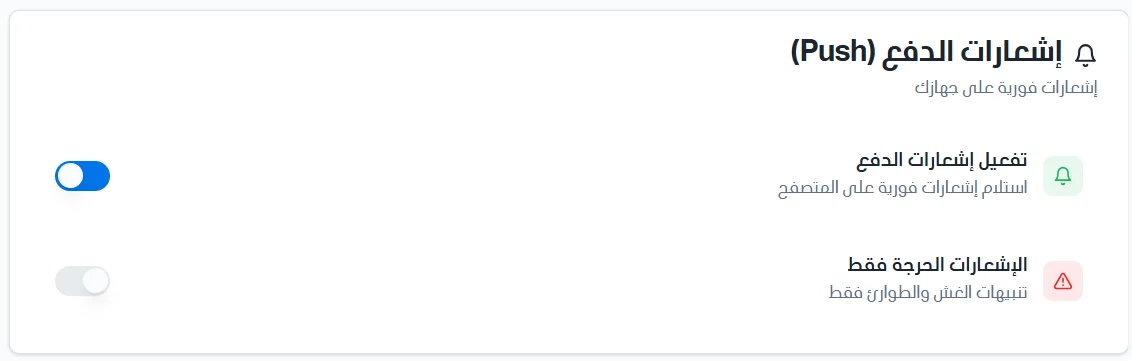
Push notifications
To control instant notifications on your device:
Enable push notifications: turn receiving instant notifications in the browser on or off.
Critical notifications only: turn receiving only critical notifications, such as cheating and emergency alerts, on or off.