Sessions & proctoring
Live proctoring a session
Use the live proctoring panel to follow students, take actions, record violations and understand automatic alerts.
Last updated
When you open live proctoring for a session, a detailed control panel appears that lets the proctor follow the session and students and take the necessary actions.
The proctoring panel
Time tracking: a precise countdown showing the time remaining until the session ends.
Individual student status: student cards showing the student's connection status and the system they use.
Connected students: the number of students present in the exam.
Alerts: the number of problem and cheating alerts.
Recent alerts: instant detection of any alerts or problems students face.
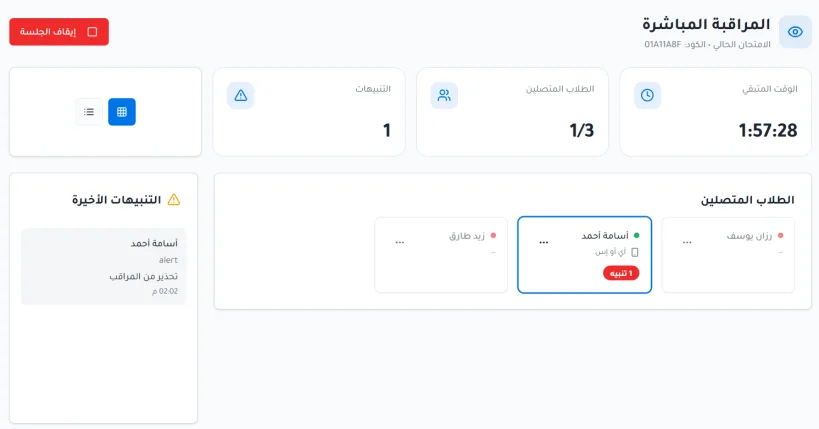
From the quick actions you can:
Extend time: add extra minutes to the session.
Message everyone: send alerts and reminders to students.
Stop session: end the exam for all students, save their answers automatically, and send the student a message that the session has ended.
Actions on a specific student
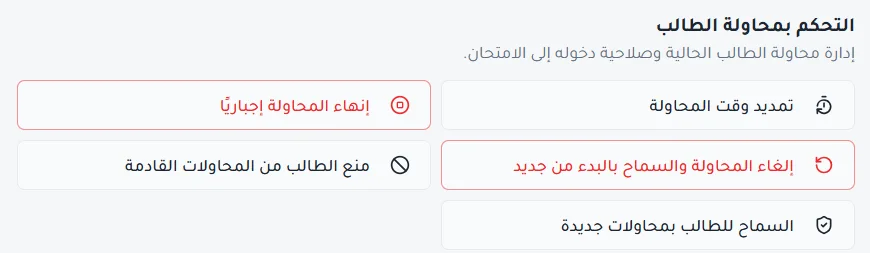
By clicking the student's details you can:
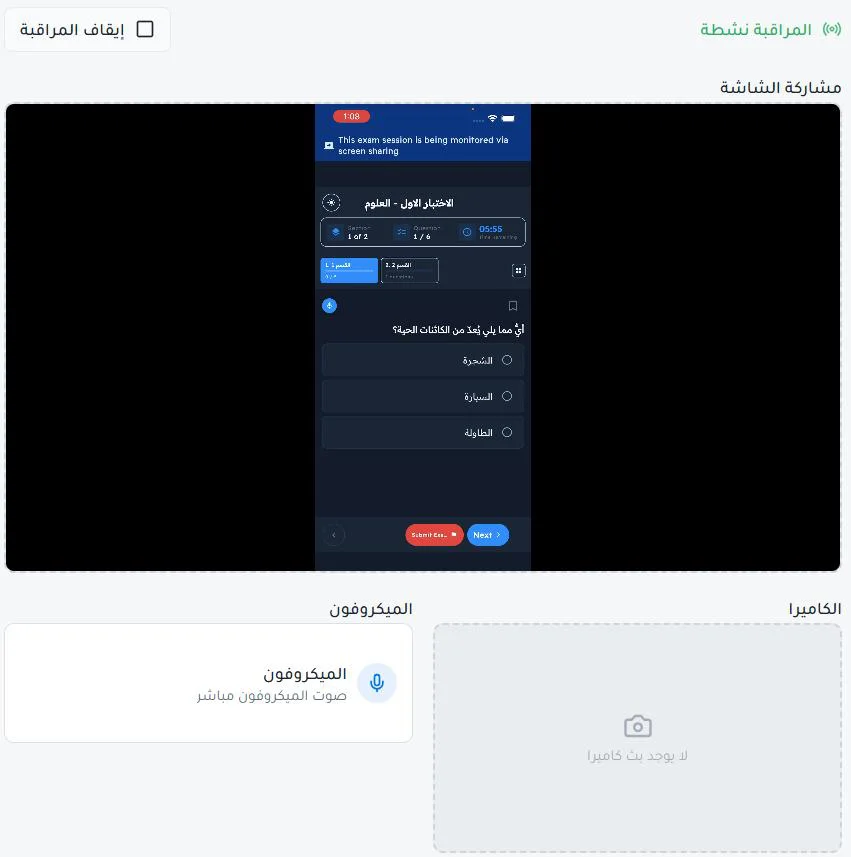
Monitor this student: watch the screen stream, monitor the student through the camera stream, and listen to the live microphone audio.
Extend attempt time.
Force-end attempt: end the student's current attempt and submit their answers, while blocking their remaining attempts.
Cancel attempt and allow restart: cancel the current attempt without saving its answers, and allow the student to start a new attempt.
Block student from future attempts: prevent the student from taking their remaining attempts.
Allow student new attempts: allow the student to take their remaining attempts after the block is lifted; used to remove the block on future attempts.
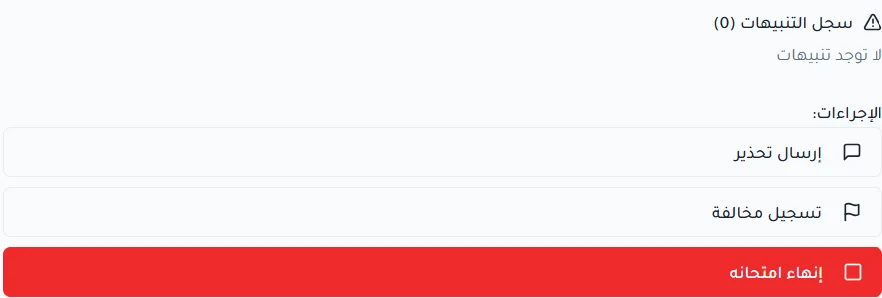
From the actions menu you can also:
Send warning: send an alert message that appears to the student on the exam screen.
Record violation: formally document cases of cheating or inappropriate behavior in the system records.
End student's exam: withdraw the exam from the student and close their session manually before time runs out.
Automatic alerts during the exam
The system monitors certain events that occur while the exam is being taken and shows alerts to the proctor in the live proctoring panel:
Device change: if the student moves from the web to the mobile app or desktop app, or opens the exam from another device, they can resume the exam from the new device. An alert appears for the proctor in the session and in the recent alerts section saying the student continued the exam from another device; this alert is not shown to the student.
Leaving the exam screen: when the student leaves the exam screen while using the mobile or desktop app, the system sends an automatic warning that the student left the exam app, and it appears to the proctor among the alerts.
Repeated app exits: if the student leaves the app repeatedly, the system ends their exam automatically, and the case is recorded as a violation in the recorded violations section, with the violation type stating that they left the exam app.
AI cheating detection: if Safe Exam Browser and the AI cheating detection feature are enabled and the student has a photo in their profile, the system automatically creates a violation when it detects either of two cases: the student is not visible in front of the camera, or another person is taking the exam.
The violation is recorded in the recorded violations section of the system, then the system files the report itself, sets its severity level, and saves it in cheating reports alongside the proctor's reports.
Record a violation manually
When a teacher is proctoring, the violation is recorded manually by entering the following data:
Violation type: choose a type from the list, or click + Add new type to add a type specific to this exam. The added type does not appear in the lists of other exams.
Violation severity: choose low, medium or high (default: medium).
Violation description (optional): describe in detail what you saw.
Action taken: select what is needed from: send a warning to the student (selected by default), end the student's exam immediately (cannot be undone), or zero the exam score (the student completes the exam and gets a final score of zero).
Attach a screenshot (optional).
Click Record violation, and the report is saved on the cheating reports page.