Question banks
Question banks within the curriculum structure
Learn about the page that manages an item's banks, how to create a new question bank, and bank actions.
Last updated
From an item in the curriculum structure you can open the page that manages its question banks, create new banks and control them.
Open the banks management page
Click Manage question banks to go to the banks management page for this item. Five statistic cards appear at the top of the page:
Total banks: the number of question banks available in this area.
Total questions: the total of questions stored in all banks under this section.
Active questions: questions ready to be used in exams.
Inactive questions: drafts or questions temporarily disabled for review.
Total subjects: the number of sub-sections or lessons the questions are classified under.

Add a new question bank
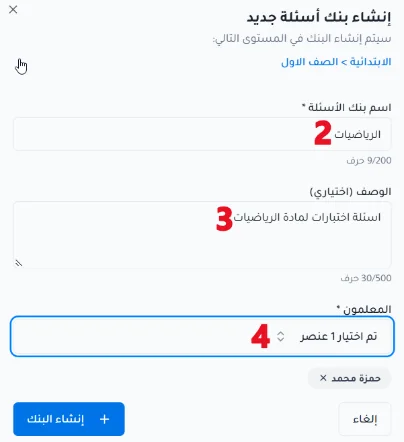
Click Create new question bank and enter the following details:
Basic information: the question bank name, and the teachers.
Optional information: the description.
Viewing and searching
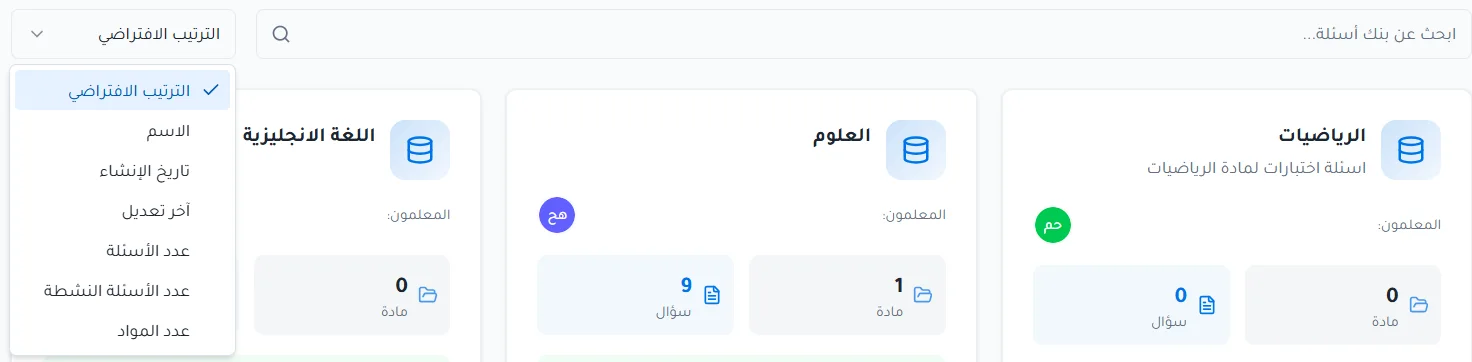
Use the search bar to find question banks.
You can sort and display the data by default order, name, creation date, last modified, number of questions, number of active questions or number of subjects.
Bank actions
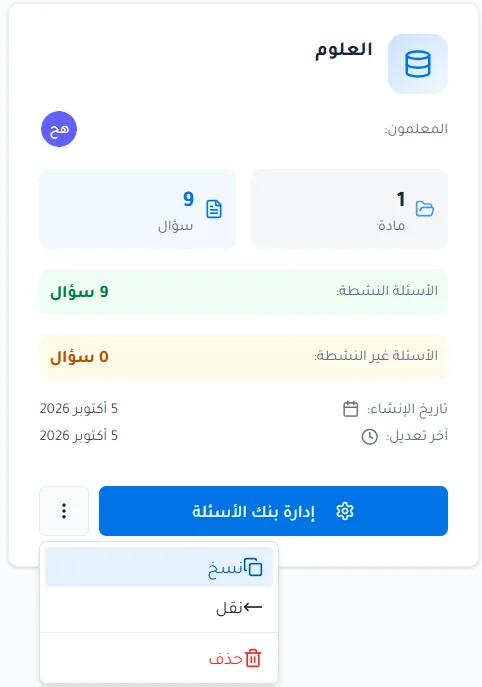
Click the three dots to do one of the following:
Copy the question bank.
Move the question bank to another level or category.
Delete the question bank.