Exams
Exam templates and creating a template
Create saved exam templates and manage them: search, filter, use, copy, rename, edit or delete.
Last updated
Templates are ready-made drafts that hold the distribution and difficulty criteria and the selected banks, so you do not have to reconfigure these settings by hand each time.
Open the page
From the side menu, click Exams and then choose Templates.
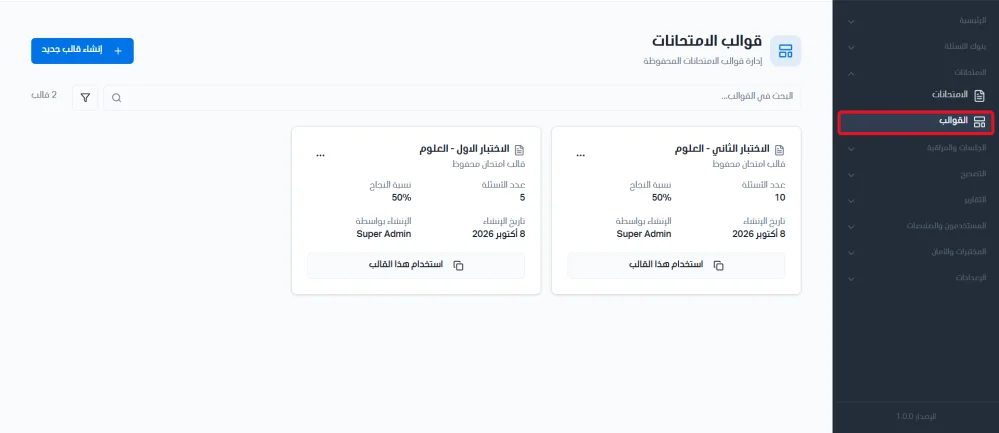
Use the search bar to search templates.
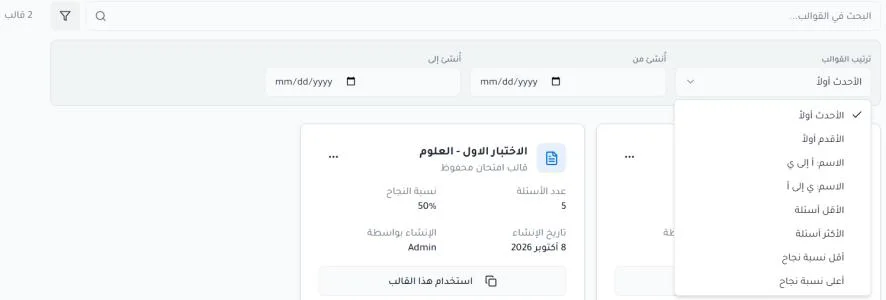
Filter templates by creation period.
Sort templates by newest, oldest, name, fewest or most questions, lowest or highest passing score.
Create a new template
When you click Create new template, the system automatically takes you to the exam builder, which uses the steps explained earlier. Choose either to create the exam manually to select the required questions, or to create a random exam.
Basic information: set the template name, number of questions and passing score.
Choose question banks: link the template to the required sources.
Distribute questions: set the difficulty criteria and topic distribution.
Review and publish: verify the data before the template is finally saved.
The template management view
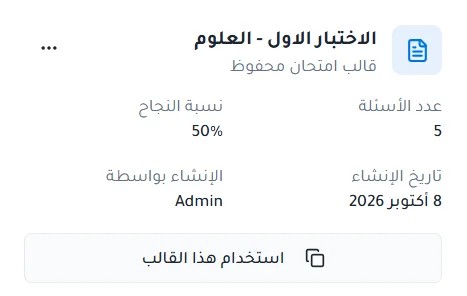
Templates appear in an organized list that shows, for each template:
Template name: for example 'First Exam - Science'.
Number of questions: the total number of questions defined in the template.
Pass rate: the required passing score.
Creator: the user who created the template.
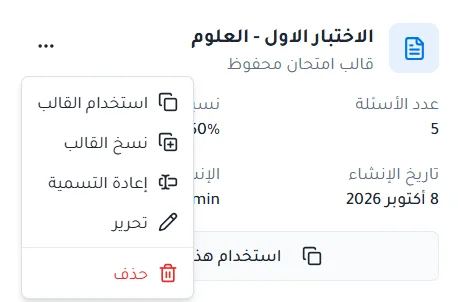
Available template actions
The system provides quick actions to manage each template individually:
Use template: create a new exam from the template.
Copy template: create a new copy of the template.
Rename: change the template name.
Edit: modify the template's data and settings.
Delete: permanently remove the template from the system.