Exams › Creating an exam
The exam details page
Manage an exam's forms, instructions and assignments, plus the limits on editing and reassigning.
Last updated
The page for each exam lets you view its data, edit and manage it, and assign it.
Stat cards
Questions: the number of questions in the exam.
Pass rate: the score required to pass.
Assignments: how many times the exam has been assigned to individual students or to a group of students.

Exam forms
You can create and manage fixed sets of questions for the exam.
Click Create forms.

Enter the number of forms required and a name prefix (optional).
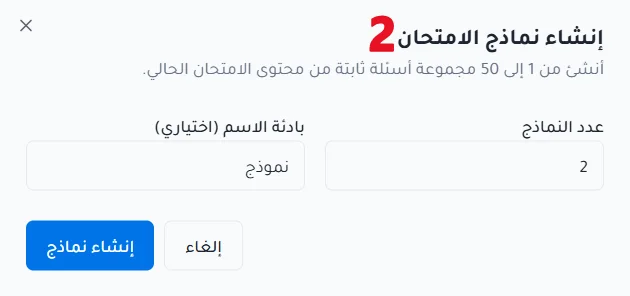
Click Create forms.
After the forms are created you can refresh them, and you can also:
Click View to open a form.
Click Rename to change the form's name.
Click Regenerate to generate a new version of the form.
Click Delete to delete the form.
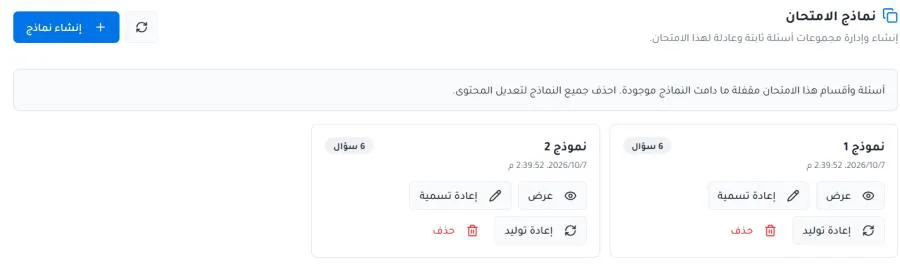
Exam instructions
You can view the exam instructions.

Exam assignments
You can review group and student assignments and edit assignment settings.
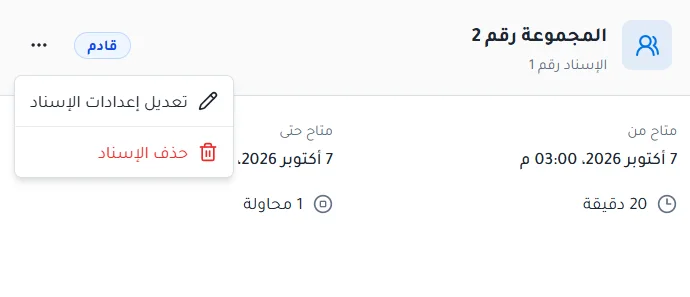
Group assignments: you can edit the assignment settings or delete the assignment.
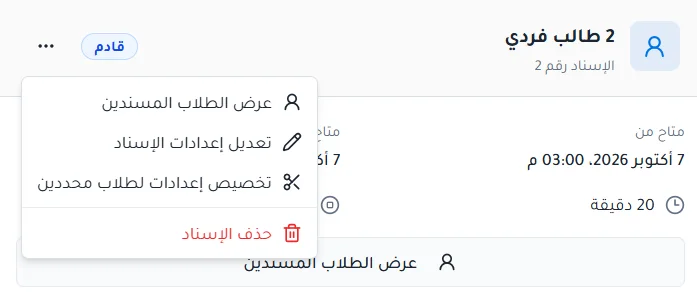
Individual assignments: you can view the assigned students, edit the assignment settings, delete the assignment, and customize settings for specific students.
Limits on editing and reassigning
Assignment settings cannot be edited after the student has started an exam attempt.
The exam cannot be assigned again to the same student while their current attempt is upcoming or active.
The attempt must be completed or ended before the exam can be reassigned to the same student.