Reports
Marks and devices log
Track changes to answer marks after grading, and see students' devices and login sessions for each attempt.
Last updated
This section includes the marks change log and the attempt devices, which you will find under the Marks and devices log option on the exam page.
Marks change log
This log documents every change made to answer marks after they were graded: who changed the mark, when, and what it was before and after the change. Click Refresh to reload the log, and Clear filter to remove the filter conditions.
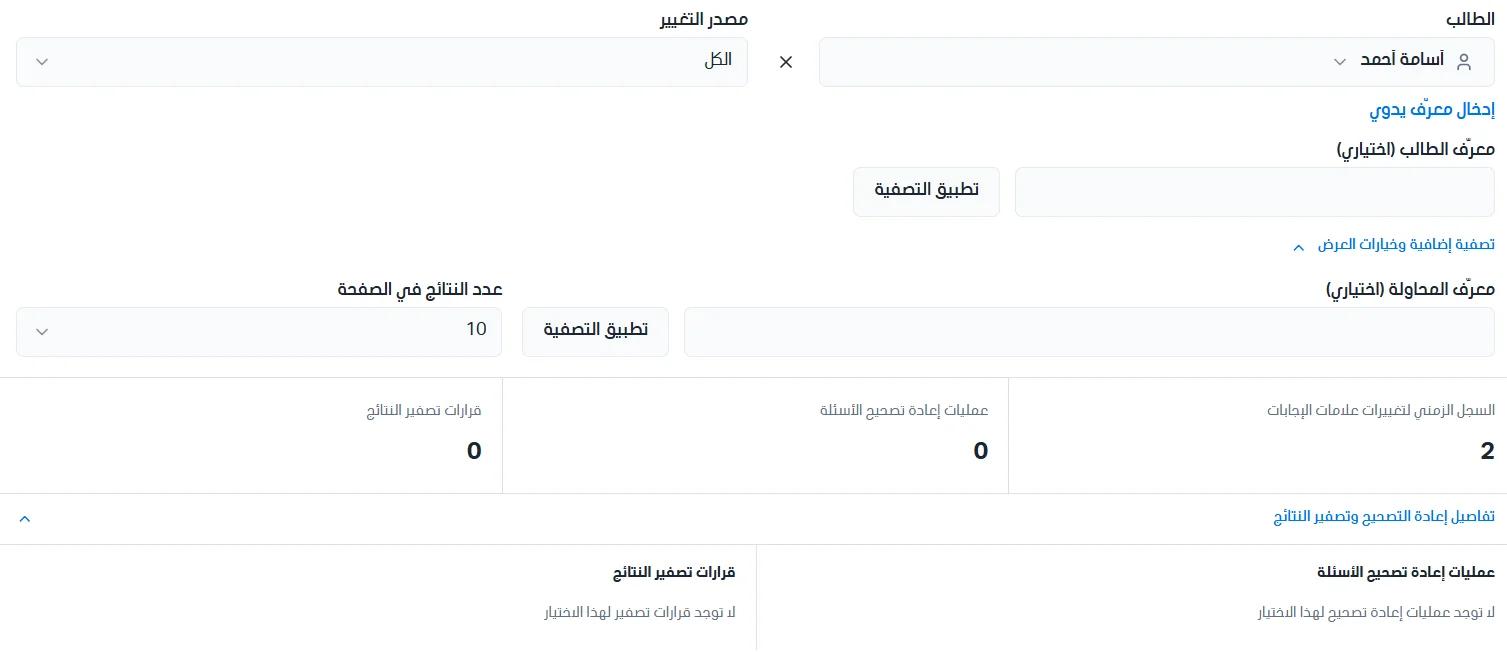
First choose the student to show their data.
You can choose the source of change you want: manual grading, rubric grading, rubric result override, AI approval, question regrading, or automatic grading.
You can enter the student's ID to show their data.
You can filter attempts by searching with the attempt ID.
You can control the number of results shown per page.
Three summary cards appear: the timeline of answer mark changes, question regrading operations, and result zeroing decisions. Click Regrading and result zeroing details to show the question regrading operations and the result zeroing decisions.
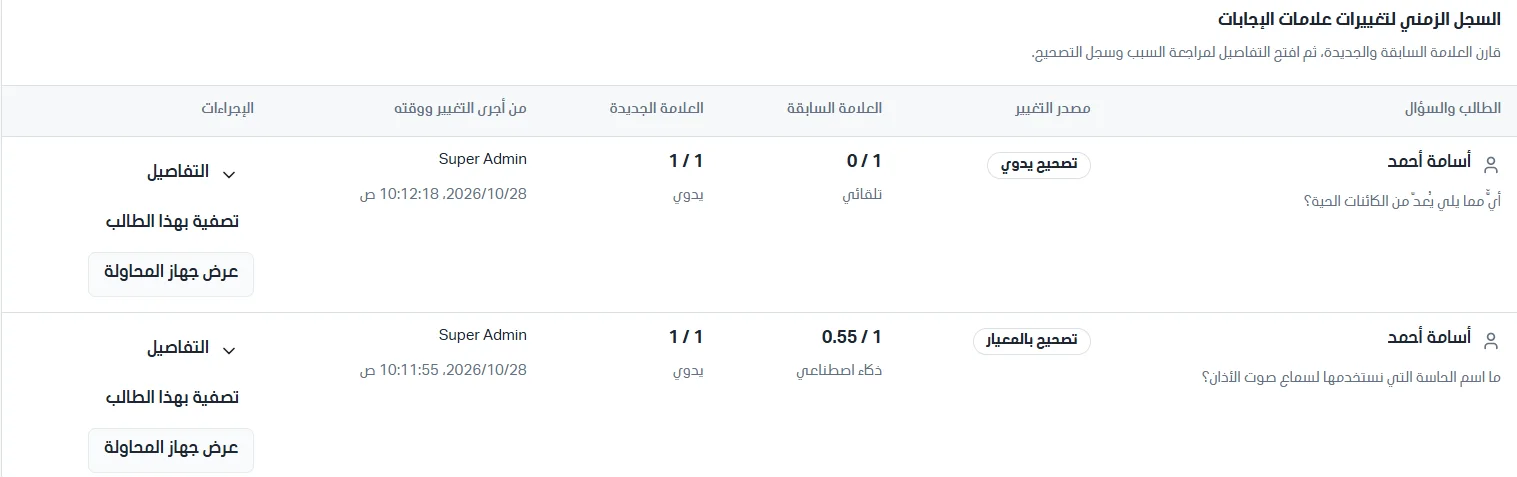
Changes table:
Student and question: the student's name and the question whose mark changed.
Change source: how the change happened (for example, manual grading).
Previous mark: the mark before the change, with the way it was determined beneath it.
New mark: the mark after the change, with the way it was determined beneath it.
Who made the change and when: the name of the user who made the change and the date and time of the change.
Actions: Details, and View attempt device.
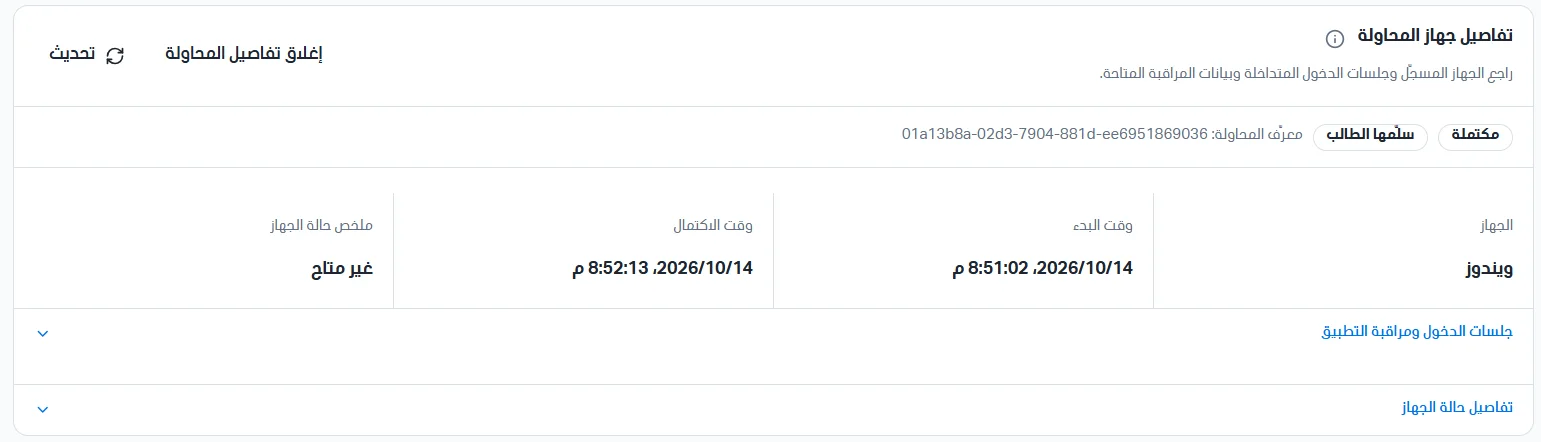
Click Details to see: the question text, the previous grader and the time they graded, the previous mark and the answer's correctness, the new mark and the answer's correctness, and the reason for the change. Click View attempt device to go to the attempt devices and see the attempt device's details.

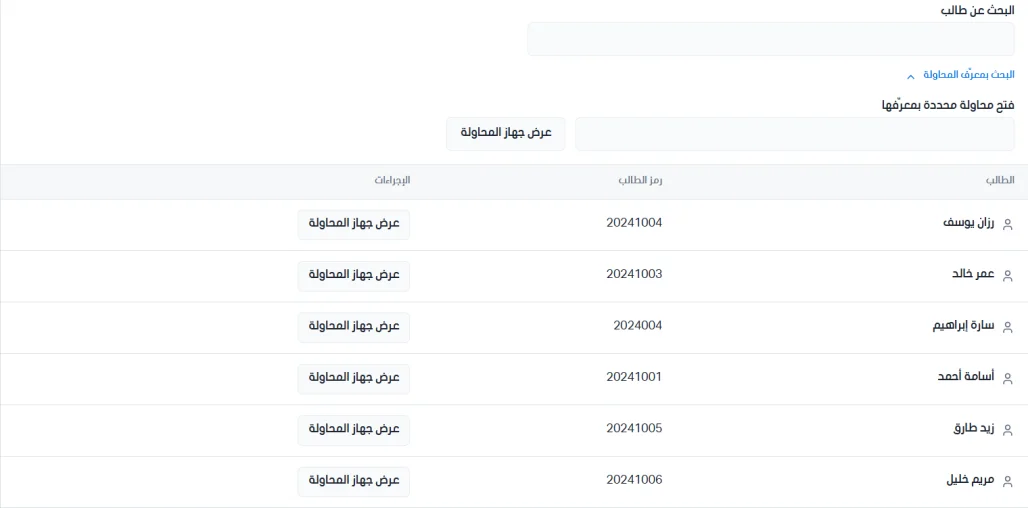
Attempt devices
This page shows students' devices for the attempts available in the results report. Choose a student and click View attempt device from the list, or search for a student by name or attempt ID.
Attempt device details
At first, the attempt status (for example, completed), how the attempt ended (for example, submitted by the student), and the attempt ID appear, followed by:
Device type.
Start time.
Completion time.
A summary of the device status.
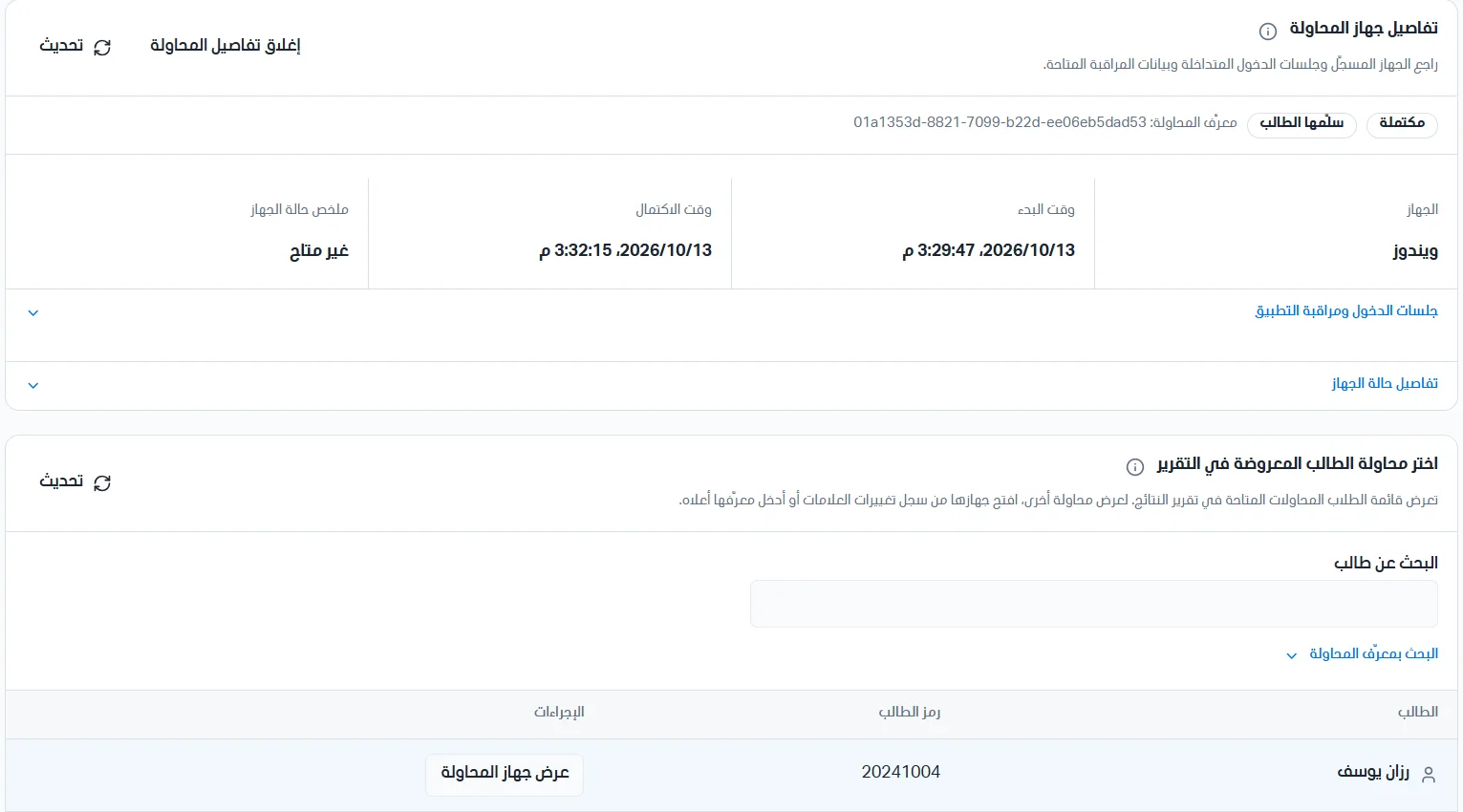
Click Login sessions and app monitoring to see the login sessions that overlap with the attempt and the app monitoring sessions. Click Device status details to show a summary of the app's status in this attempt.

