Question banks › Adding questions
Create a new question
Learn the steps to create a new question, from choosing the type to saving, using a multiple-choice example.
Last updated
You can create a new question inside a question bank by choosing its type, then filling in its content and settings. This guide walks through the steps using a multiple choice – single answer question as the example.
Get started
Click Create new question and choose the question type.
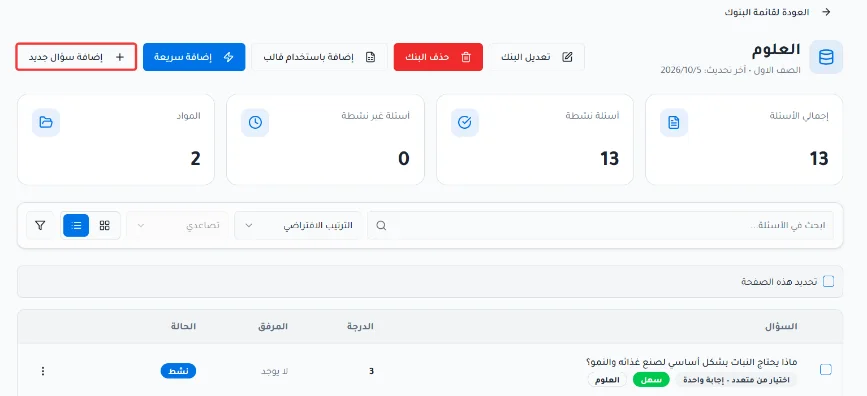
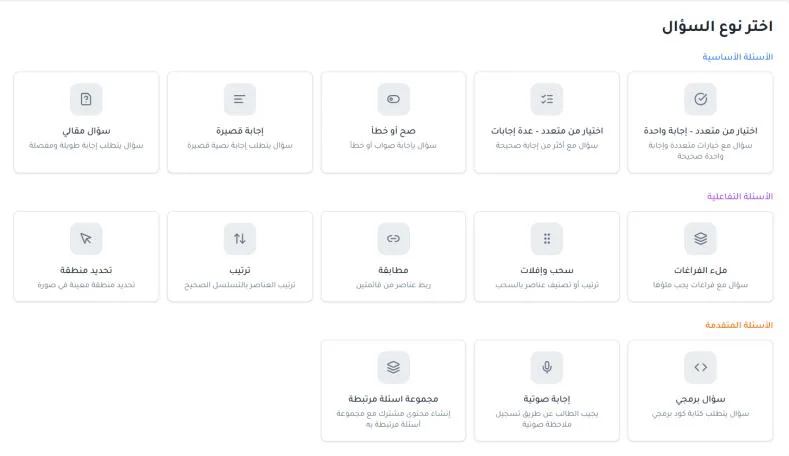
Fill in the question content and set its settings.
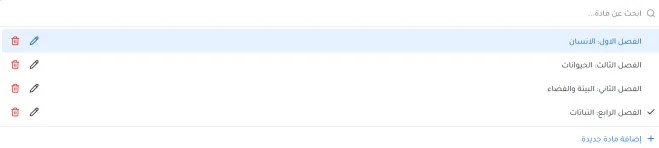
Step 1: Choose the subject
Choose the subject or add a new one.
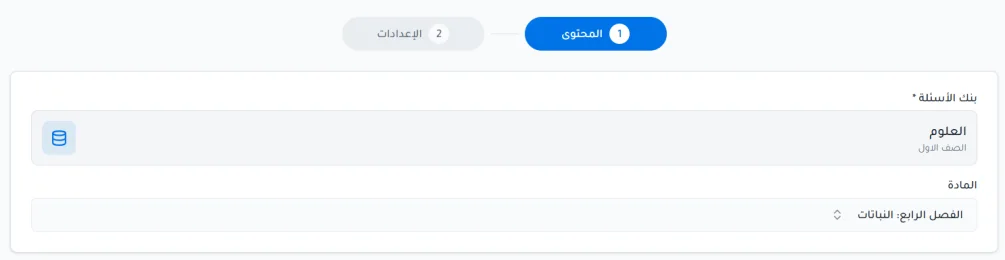
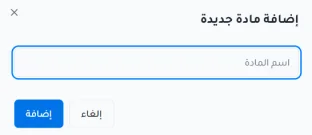
Step 2: Question content
Write the question text clearly in the designated field. You can generate or improve it with AI.

Question image (optional): you can add an illustrative image to help the student understand the question.
Enter the answers and mark the correct answer. You can add an option with the + Add option button.
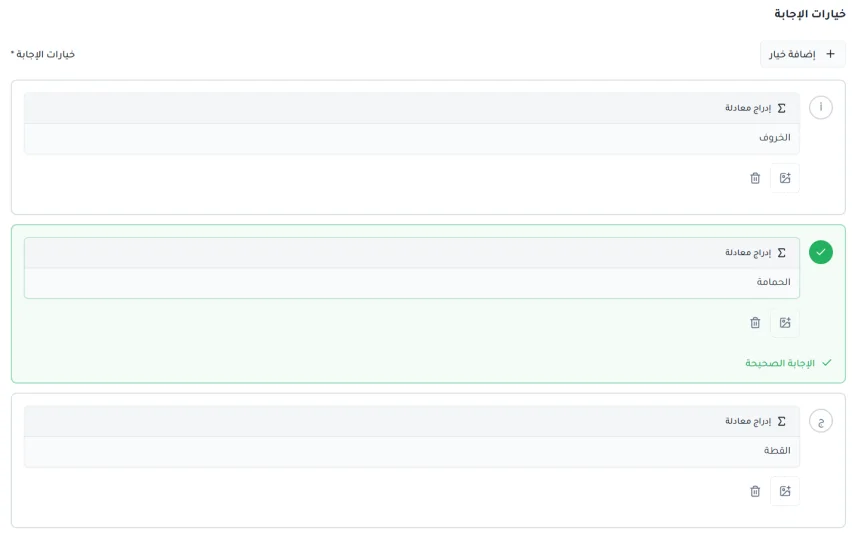
You can add an illustrative image for an option or answer.
You can add a short explanation that shows to the student when they choose this alternative.
You can remove any unwanted option using the trash icon.
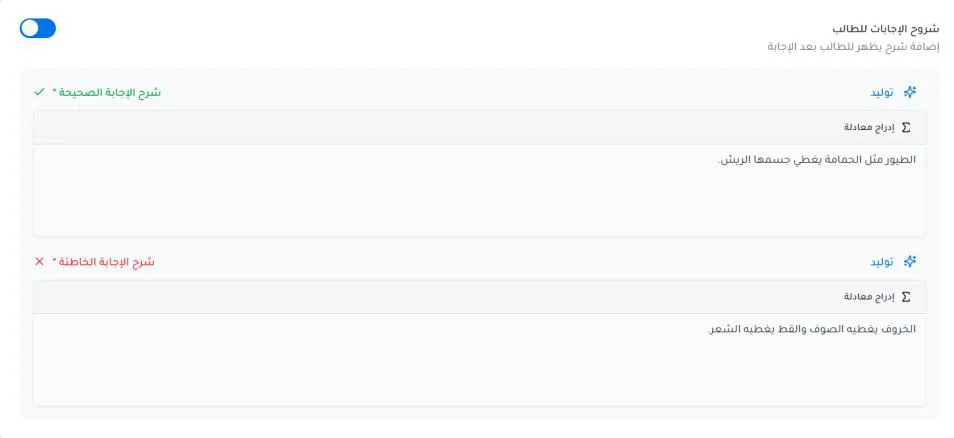
When you turn on Answer explanations for the student, you can add explanations that show to students after the exam is submitted and the results appear:
Correct answer explanation: why it is the most accurate answer.
Wrong answer explanation: to clear up common confusion in this question.
Generate: you can use AI to generate these explanations based on the question text.
Step 3: Settings and saving
Set the question settings:
The question's difficulty level.
The question's points: select or enter them.
Before the final save, the system gives you a Quick review card that summarizes the question: question type, the bank it belongs to, subject, difficulty level and the assigned score.
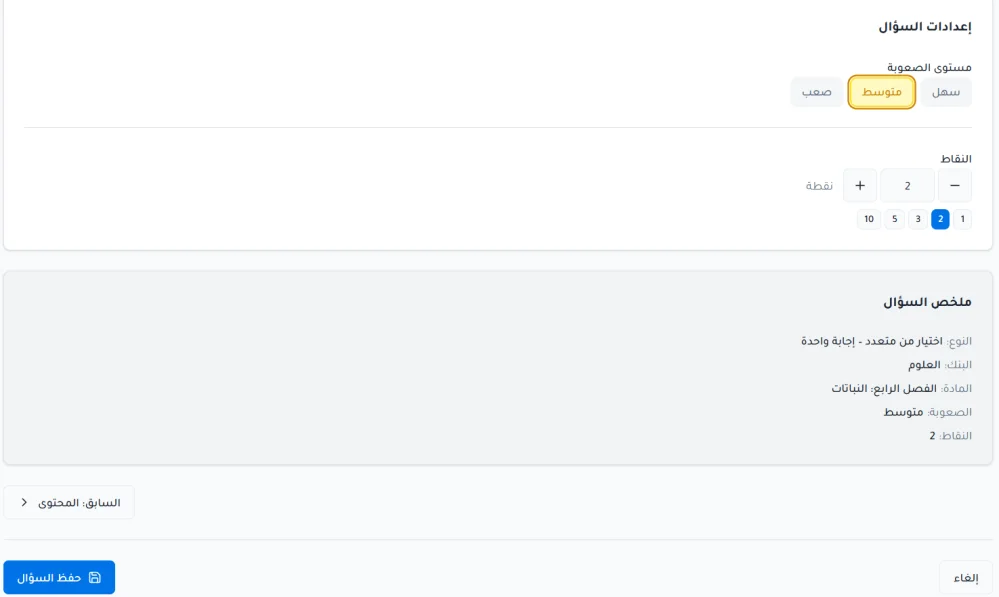
Click Save question to save it and return to the question bank management page.
Watch it in a video
 Add a single-answer multiple-choice question0:51
 Add a multiple-answer multiple-choice question0:52
 Add a true or false question0:34
 Add a short answer question0:49
 Add an essay question0:47
 Add a fill-in-the-blanks question0:36
 Add an audio answer question0:31
 Add a coding question (Part 1): language and limits0:39
 Add a coding question (Part 2): code and test cases0:38
 Add a matching question0:44
 Add an ordering question0:43
 Add a drag-and-drop question0:45
 Add an image hotspot question0:35
 Create a question group with a shared passage1:25
 Add a math equation to a question: fractions, roots and exponents1:11