Settings
Top up AI credits
View your AI credit cards and top up credits by card, step by step.
Last updated
The AI credits page is used to view and manage credit transactions for AI features, and from it you can add credits to your account to use those features.
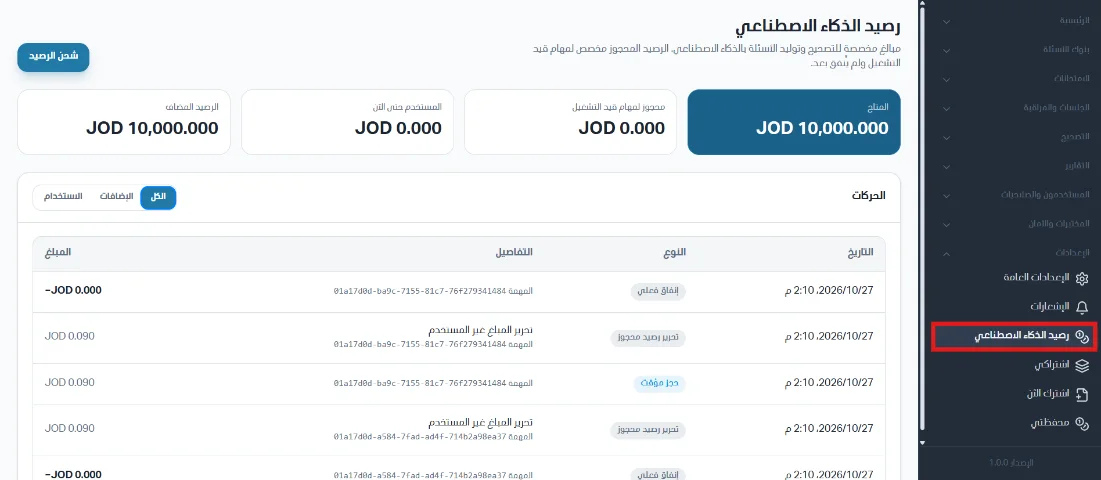
Open the page
From the side menu, click Settings.
Choose AI credits.
Statistic cards
Four statistic cards appear at the top:
Available credits: credits available for use.
Reserved for running tasks: credits reserved for tasks in progress that have not been spent yet.
Credits used so far: credits consumed.
Credits added: credits topped up.
Top up credits
Click Top up credits.

Enter a credit amount or enter another amount, then click Top up.
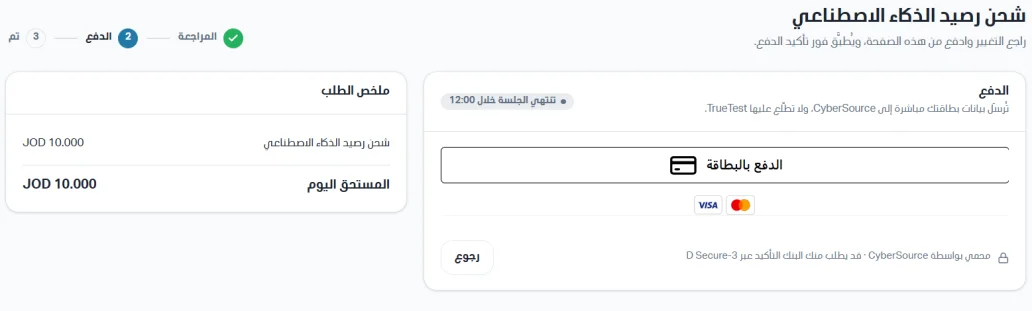
Review the change and the order summary, then continue to payment.

Click Pay by card.
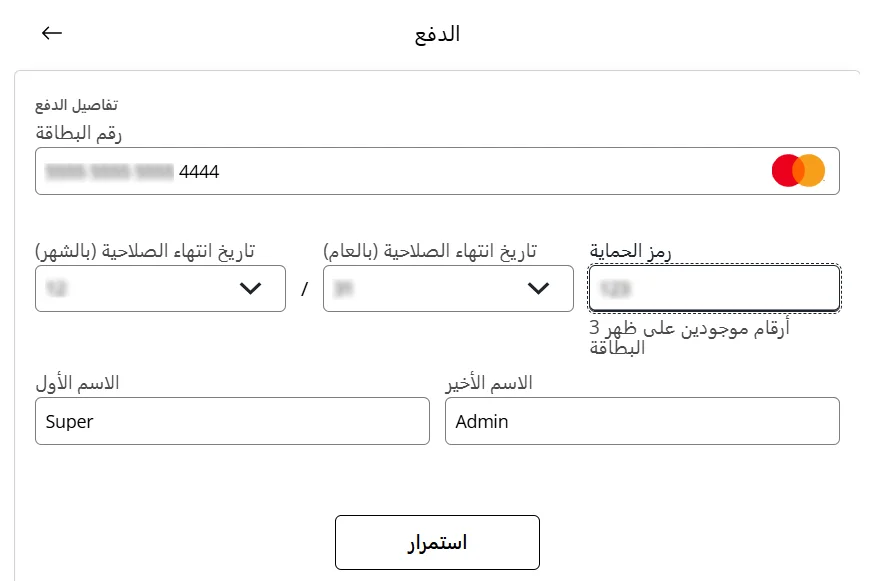
Enter your card details, then click Continue.
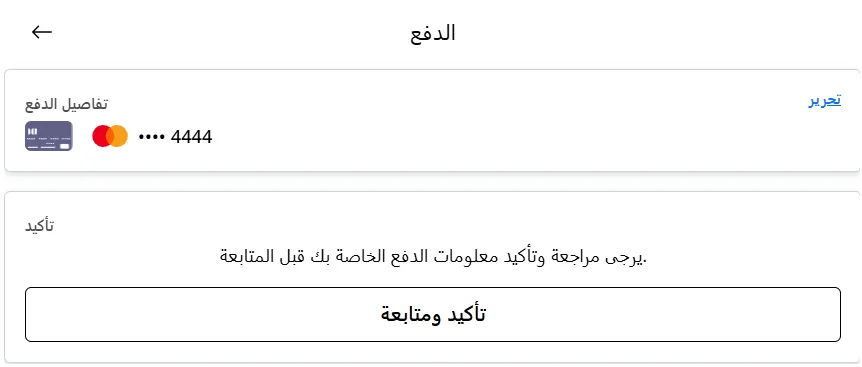
Review the payment details, then click Confirm and continue.