Labs & security
Manage labs
Add a lab with its building, location, capacity, and device count, and edit or delete labs.
Last updated
The Manage labs page lets you manage labs and devices.
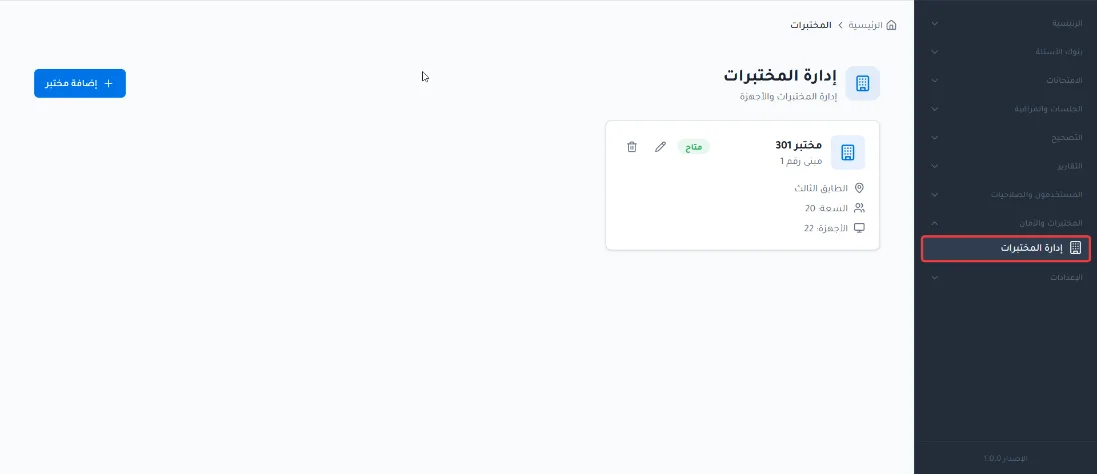
Open the page
From the side menu, click Labs and security.
Choose Manage labs.
Add a lab
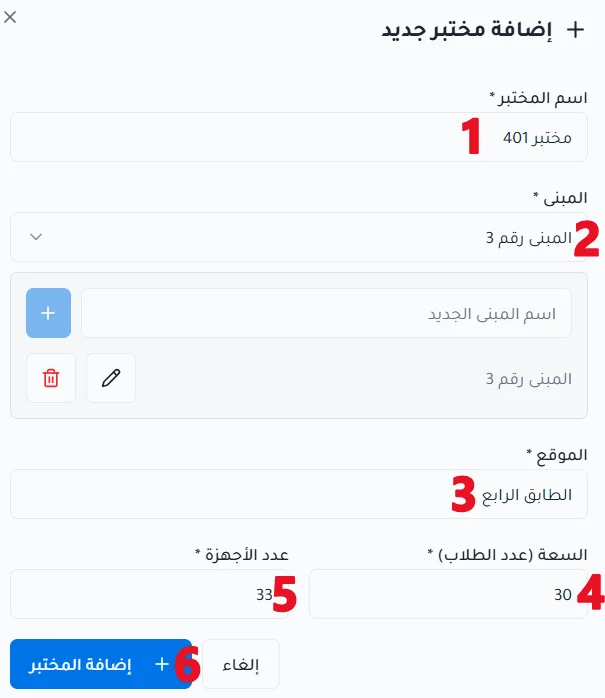
Click Add lab.
Enter the lab name.
Choose the building from the drop-down list, or add a new building.
Enter the lab location.
Enter the lab capacity, which is the number of students allowed in the lab.
Enter the number of devices in the lab.
Add a new building
Enter the new building's name.
Click +.
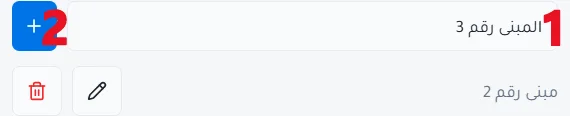
Choose the added building from the drop-down list.
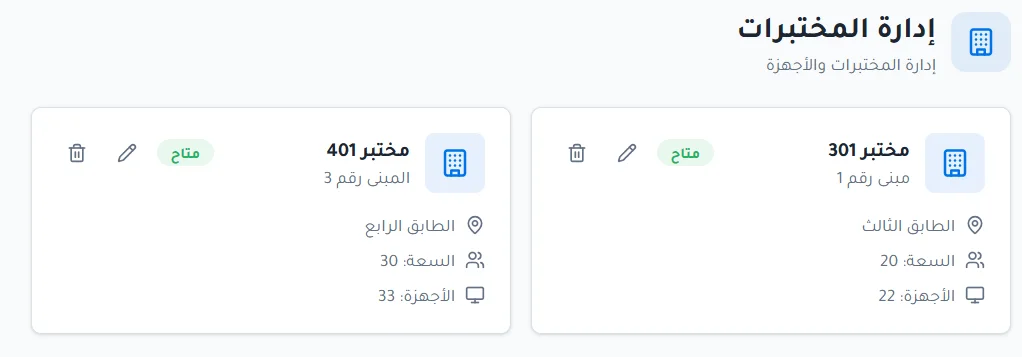
View and edit labs
Labs appear as organized cards, and you can:
View lab information.
Edit lab details.
Delete a lab.