Reports
Exam reports overview
Learn about the exam reports page, its cards and table, and how to export reports.
Last updated
The exam reports page lets you follow exam results, student performance, and question analysis.
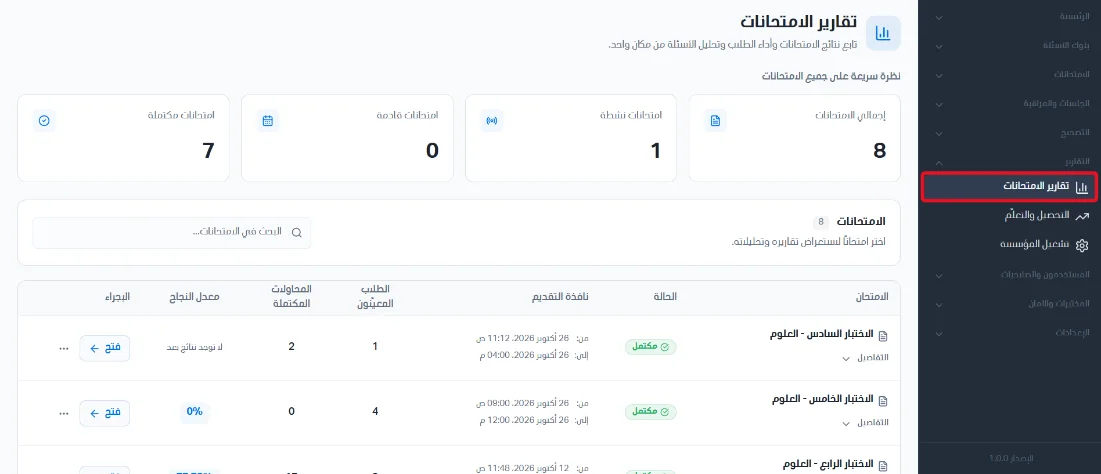
Opening the page
From the sidebar, click Reports.
Choose Exam reports.
Summary cards
Total exams: the number of all exams in the system.
Completed exams: the number of completed exams.
Active exams: the number of active assigned exams.
Upcoming exams: the number of upcoming assigned exams.

The exams table
You can search for exams using the search bar. Exams are shown in an organized table with the following information:
Exam name.
Status (completed or active).
Submission window: the start and end date and time of the exam.
Assigned students: the number of students the exam is assigned to.
Completed attempts: the number of completed attempts for the exam.
The exam's pass rate.
Actions.
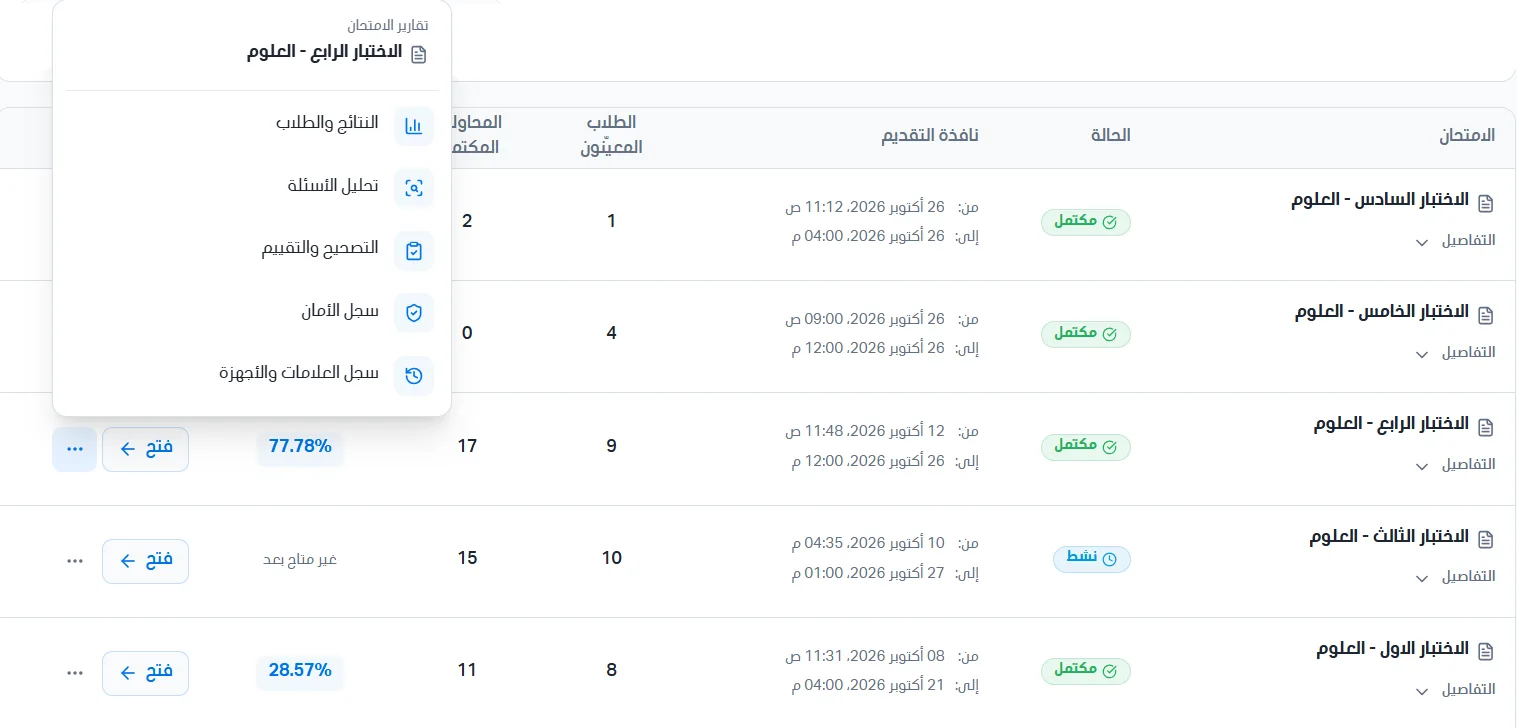
In the Actions column, click Open to go to the exam page and see its results and analysis. Click the three dots to reach the following sections:
Results and students
Question analysis
Grading and evaluation
Security log
Marks and devices log
Exam details
Clicking Details shows the following data:
Exam duration.
Number of exam questions.
Passing mark.
Number of students who have final results.
Number of students who passed.

Exporting reports
Click Open to view the exam's reports.
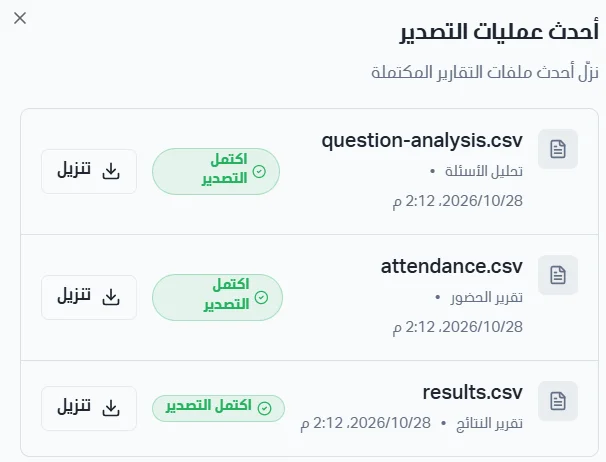
At the top of the page, click the Export button to export the results report, the attendance report, or the question analysis.
Choose the type of report to export (Results, Attendance, or Questions) to download it.

To see and download the most recent exports, click Latest exports.