Reports
Security log
Review security events, warnings, exam-leave periods, student devices, and the timeline of each attempt.
Last updated
The Security page helps you review the security events recorded during the exam: warnings and violations logged by the proctor or the AI, alerts about the student leaving the app or screen, and more.
Section 1: Security overview
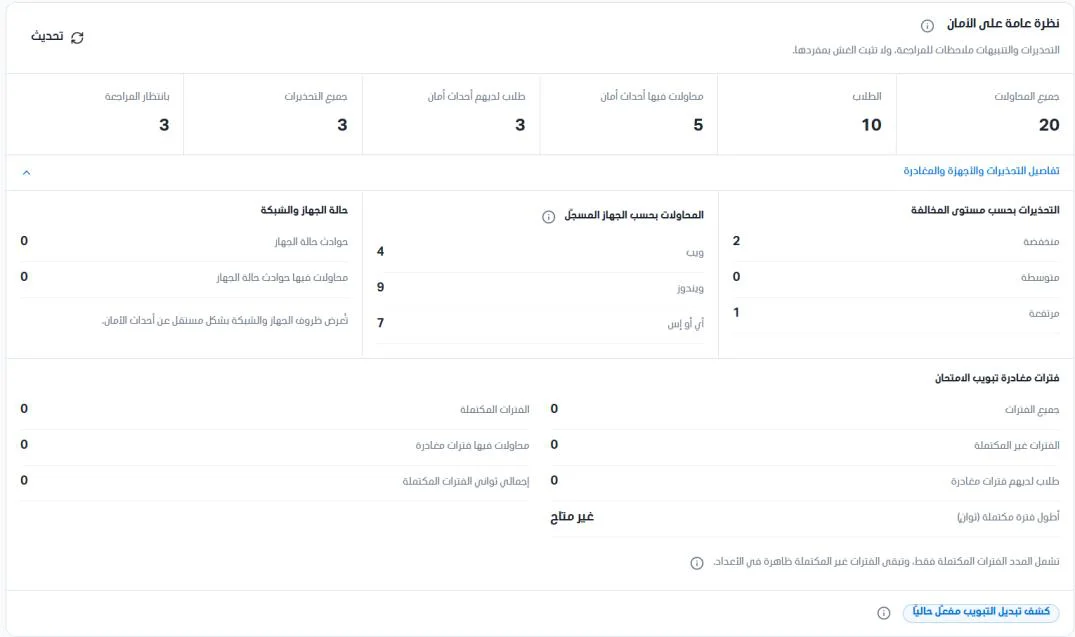
Six summary cards appear at the top. Click Refresh to reload the numbers.
All attempts: the number of exam attempts.
Students: the number of students who own these attempts.
Attempts with security events: the number of attempts in which at least one security event was recorded.
Students with security events: the number of students who own these attempts.
All warnings: the number of recorded warnings.
Awaiting review: the number of warnings that have not been reviewed yet.
Click Warnings, devices, and leave details to show:
The number of warnings by violation level: low, medium, and high.
The number of attempts by recorded device (Web, Windows, iOS): all devices recorded across all visible attempts, including repeated attempts.
Device and network status: the number of device status incidents and the number of attempts that have device status incidents. This shows device and network conditions independently of security events.
Exam leave periods: the number of complete and incomplete periods, the number of completed periods, the number of students who have leave periods, the number of attempts that have leave periods, and the total seconds of completed periods.
Section 2: Security events by type
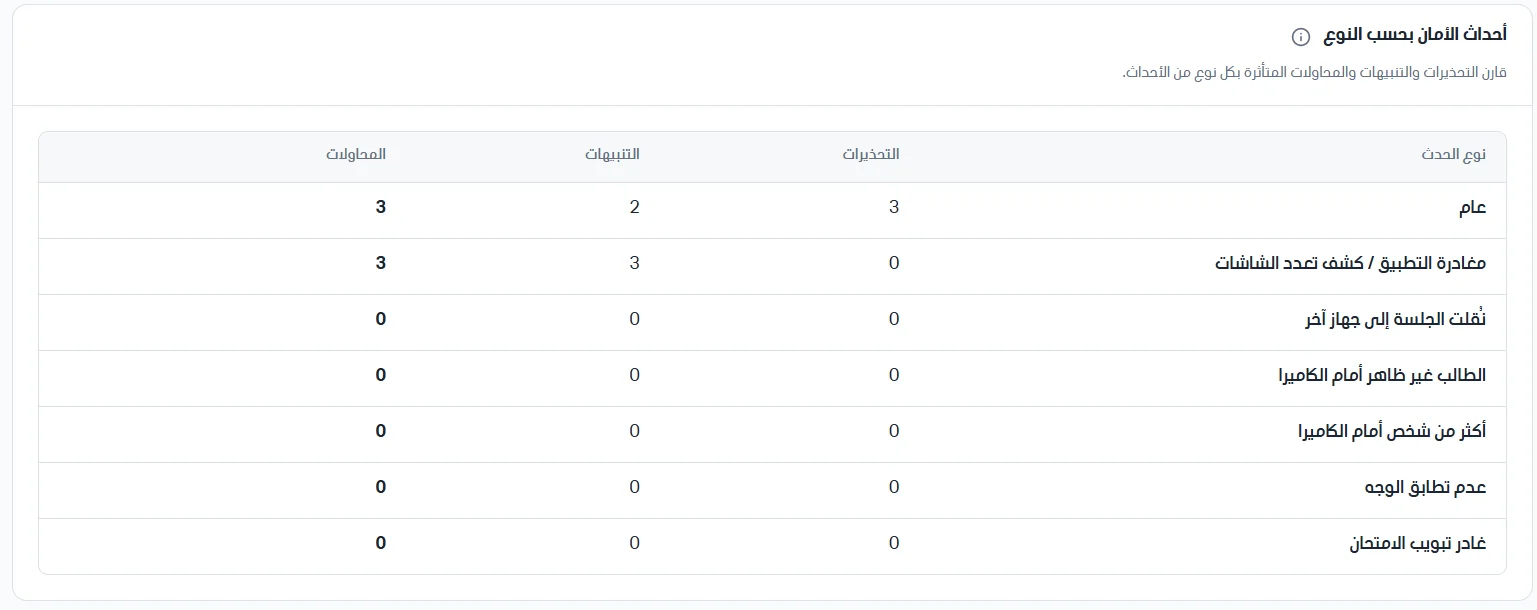
The table compares the warnings, alerts, and attempts affected by each type of event. The event types are:
General: general warnings and alerts (such as what the proctor records manually).
App exit / multiple-screen detection: the student left the exam app or multiple screens were used.
Session moved to another device: the exam session moved to a different device.
Student not visible on camera: AI camera proctoring: the student did not appear.
More than one person on camera: AI camera proctoring: more than one person appeared.
Face mismatch: the examinee's face does not match the student's face.
Left the exam tab: the student left the exam tab in the browser.
For each type, the table shows the number of warnings, the number of alerts, and the number of attempts affected by this type.
Section 3: All visible attempts
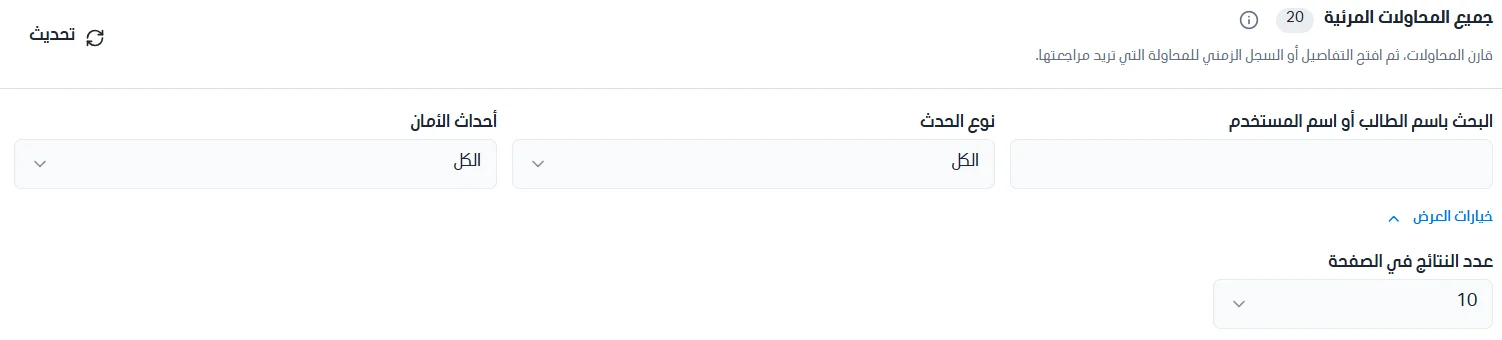
The table lists all the exam's attempts and lets you review a specific attempt. Use the search bar to look for a student; you can filter the list by event type and security events, set the number of results per page using the display options, and click Refresh to update the displayed data. The table shows:
The student's name with the username beneath it.
The attempt number and the device's operating system.
The number of security events in the attempt.
The number of warnings, with the number awaiting review beneath it.
The total time the student was away from the exam in seconds, with the number of periods beneath it.
The attempt's start date and time.
Actions: Details and View timeline.
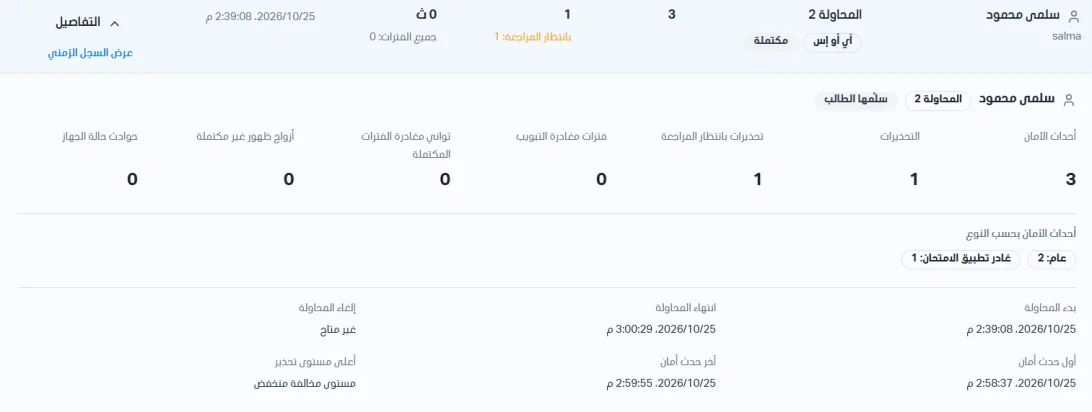
Attempt details
Click Details to see the following data. At first, the student's name, the attempt number, and how it ended (for example, submitted by the student) appear. Then:
Security events: the total events in the attempt.
Warnings: the number of warnings.
Warnings awaiting review: warnings that have not been reviewed yet.
Tab leave periods: the number of times the student left the tab.
Seconds of completed leave periods: the total seconds of completed leave periods.
Incomplete presence pairs: pairs of events (absence/return) in which one side was not completed.
Device status incidents: incidents related to the device status.
Security events by type for this attempt (for example, General: 2, Left the exam app: 1).
The attempt's start and end.
The first security event and the last security event (date and time).
The highest warning level (for example, low violation level).
Attempt cancellation (if it was cancelled).
Attempt timeline
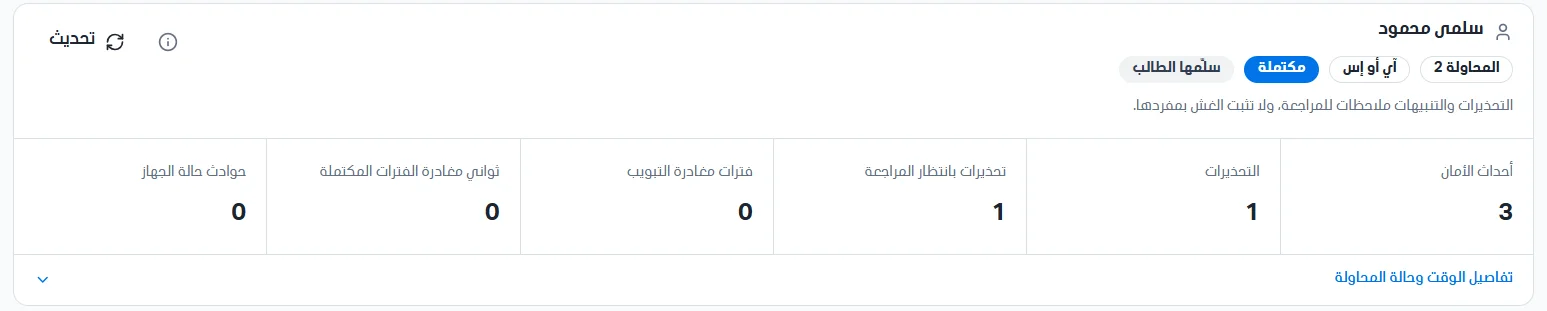
Click View attempt log to go to the attempt page and its timeline. At the top you will see the student's name, the attempt number, its status, and how it ended (for example, submitted by the student), followed by six summary cards: the number of security events, the number of warnings, the number of warnings awaiting review, the number of tab leave periods, the seconds of completed leave periods, and device status incidents.
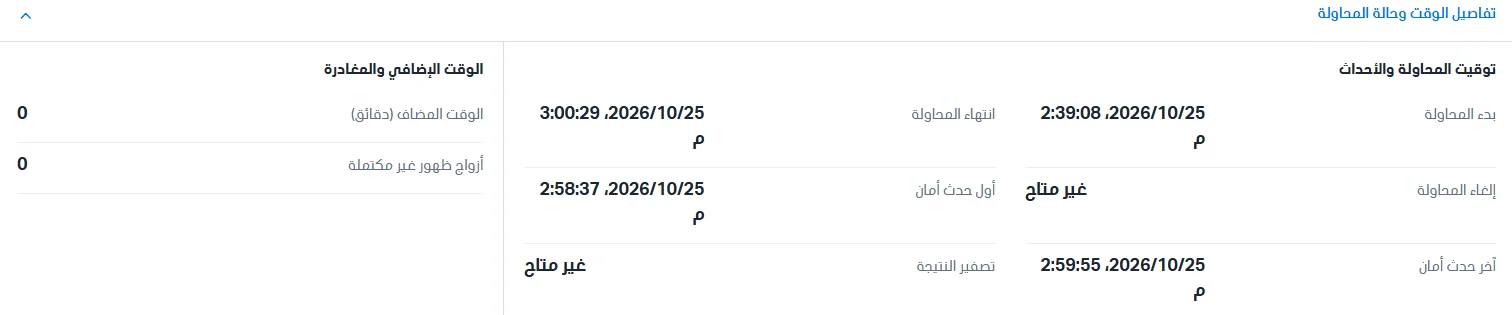
Attempt and event timing: the attempt's start date and time, its end date and time, the date and time of the first and last security event, attempt cancellation (available/not available), and zeroing the result (available/not available).
Extra time and leaving: the added time in minutes and the incomplete presence pairs.
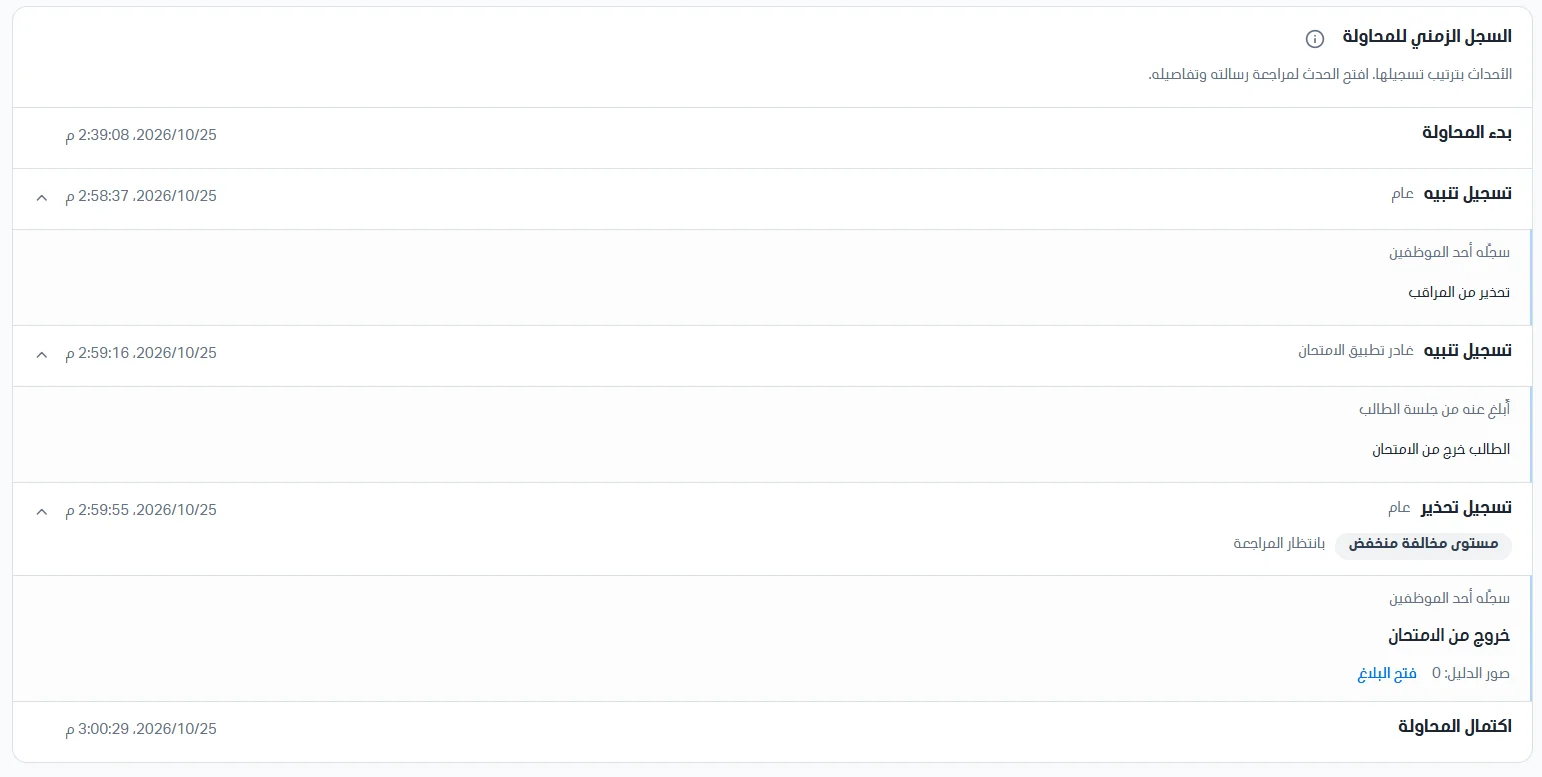
Attempt timeline: shows all the attempt's events in the order they were recorded: the attempt's start date and time, the date and time an alert was recorded with its details (such as who recorded it and the alert type), the warning's level and review status when it is recorded, and the date and time the attempt was completed.