Reports
Student list and attempt reports
Review each student's exam result and open their detailed report and answers compared with the model answer.
Last updated
The student list shows each student's result in the exam and lets you review their score and status, then open their report to see the details.
Student list
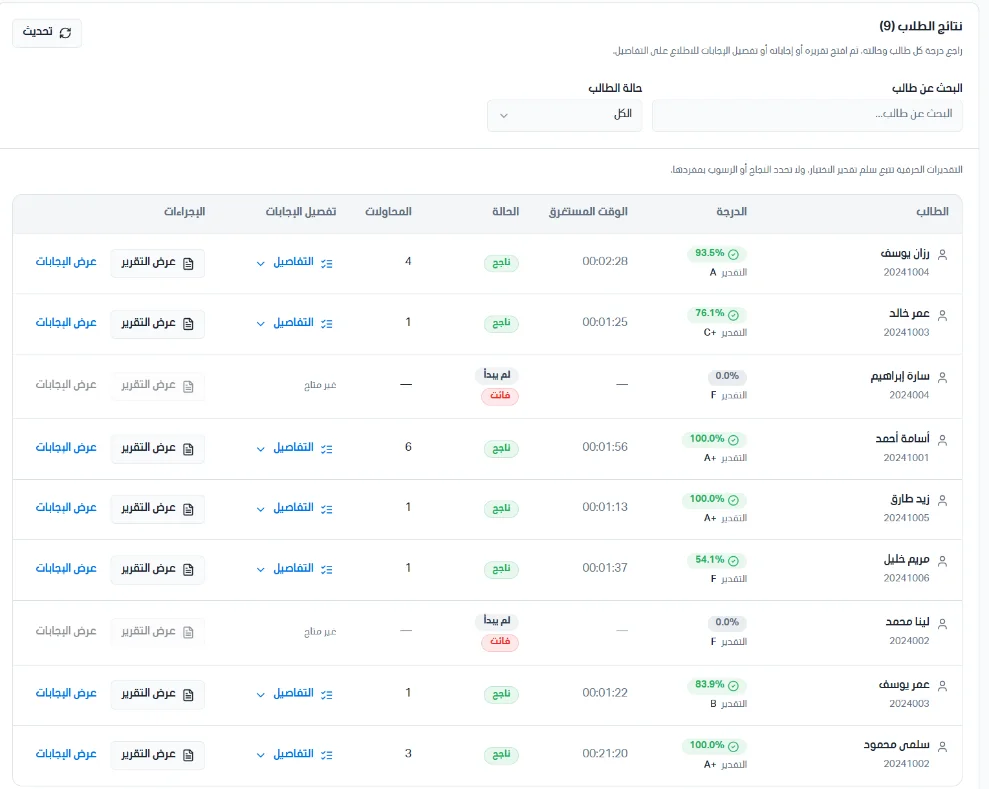
You can search for a student or filter students by status (not started, in progress, expelled, completed, passed, failed, cancelled). Student results are shown in an organized table with the following data:
Student: the student's name and academic number.
Score: the student's result as a percentage, along with the letter grade.
Time spent: the time the student spent on the exam (hours:minutes:seconds).
Status: the student's status (for example, passed).
Attempts: the number of attempts the student made.
Answer breakdown: click Details to see the answer details (the number of correct, wrong, partially correct, left blank, and awaiting-grading answers).
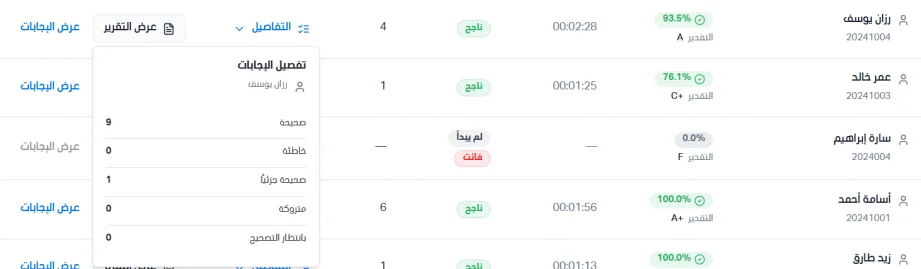
Actions: you can view reports and view answers.
Viewing reports
Click View reports to see the student's detailed report, which you can export as a CSV file. The report is made up of the following sections:
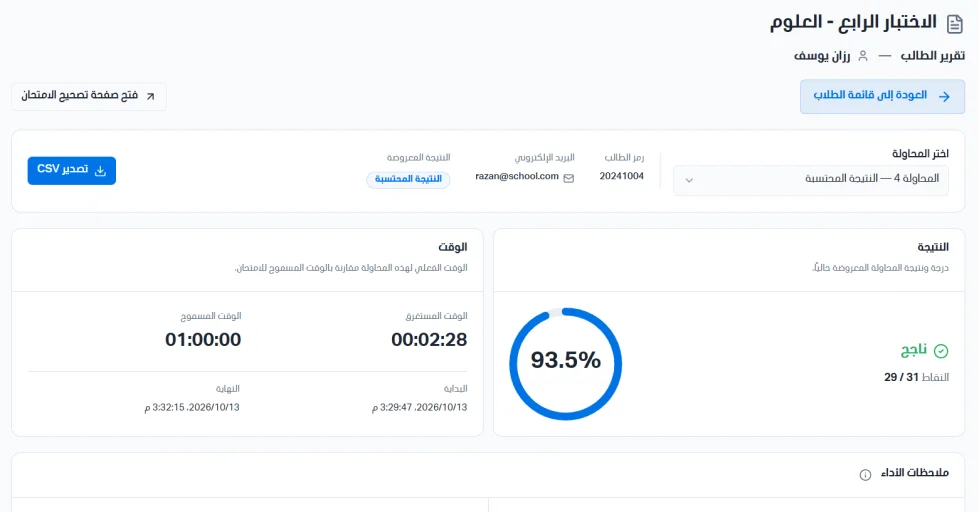
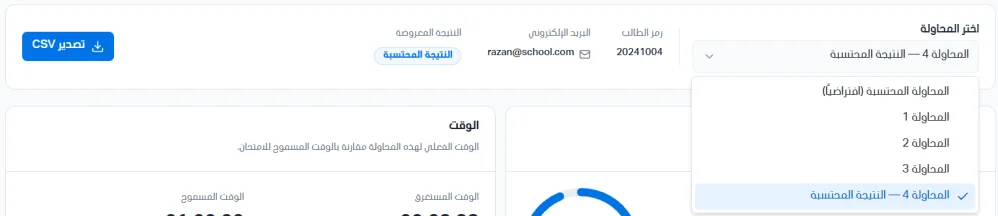
Section 1: lets you choose the attempt, see the student's code, email, and any displayed result, and export the report as a CSV file.
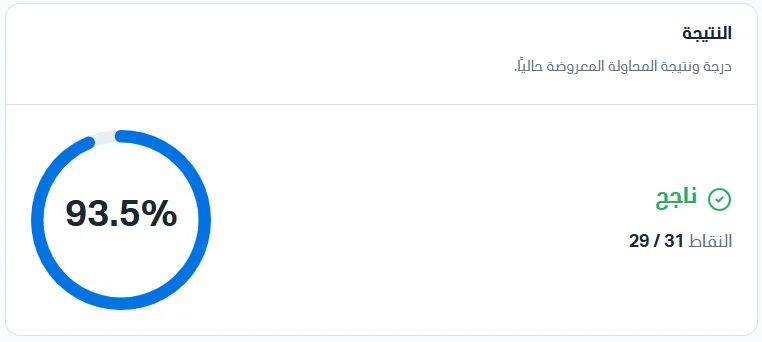
Section 2 (Result): shows the score and result of the attempt currently displayed.
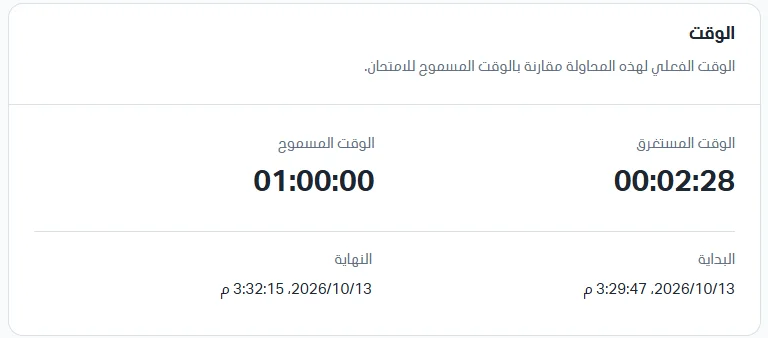
Section 3 (Time): the actual time of this attempt compared with the time allowed for the exam.
Section 4 (Performance notes): strengths and areas for improvement for the displayed attempt.

Section 5 (Performance by difficulty): a comparison of performance by question difficulty level, taking into account points and the number of correct answers.

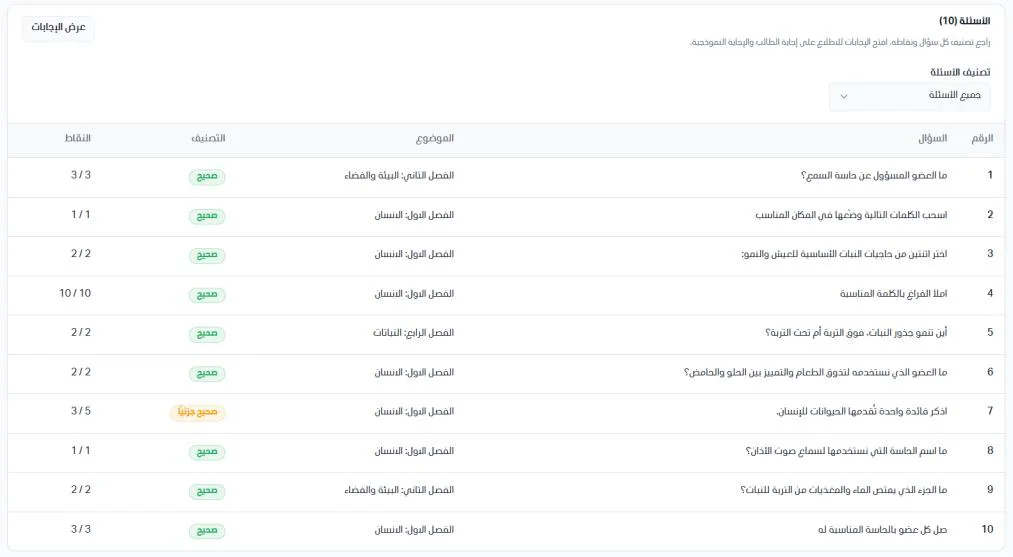
Section 6 (Questions): lets you review each question and its points. To see the answers, open Answers to compare the student's answer with the model answer.
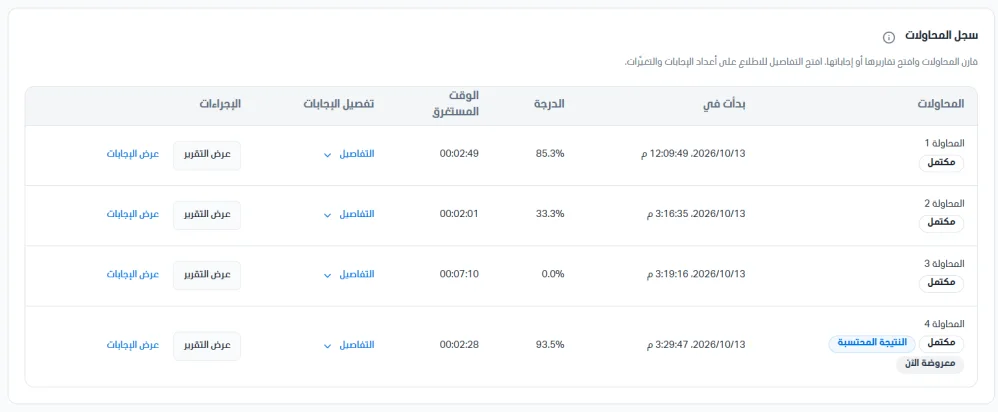
Section 7 (Attempts log): compare attempts and see their reports and answers. Click Details to see the answer counts and changes.
Viewing answers
Choose View answers to review the student's answers and compare them with the model answer. The first section shows the attempt's answer summary: the number of correct, wrong, left-blank, partially correct, and awaiting-grading answers. Click any category to show its questions, and click it again to show all questions. You can show all questions or sort them by status.

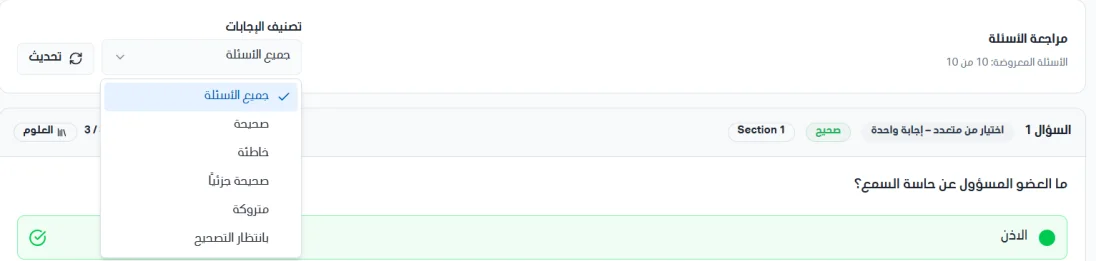
For each question, the following information is shown:
Question number.
Question type.
Question status.
Question section.
Topic.
Number of points.
Bank.
Question text.
The student's answer and the model answer.
Who graded the answer, and the grading date and time.