Settings
General settings
Edit your profile, appearance, password, language, time zone, and quick notifications.
Last updated
The General settings page lets you view and edit your account and system settings.
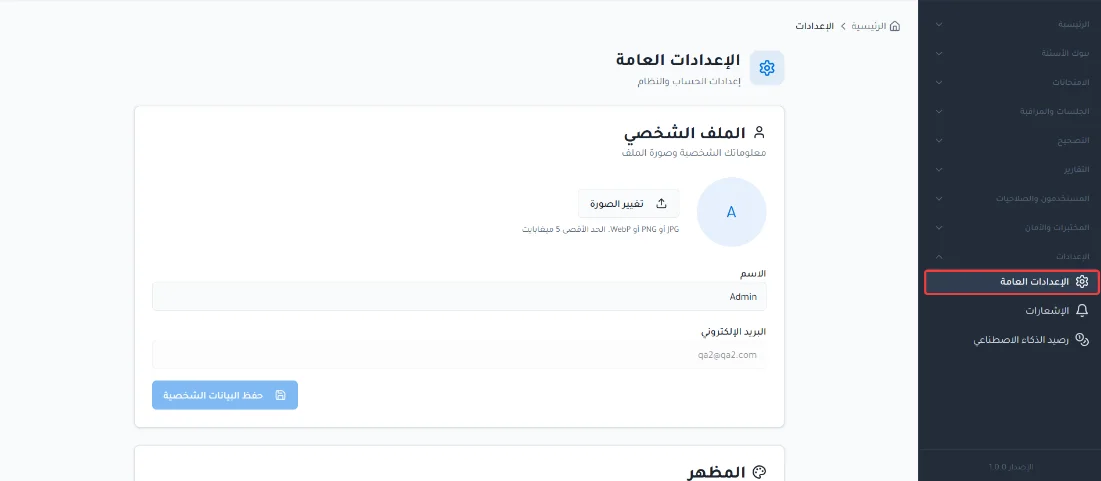
Open the page
From the side menu, click Settings.
Choose General settings.
Profile
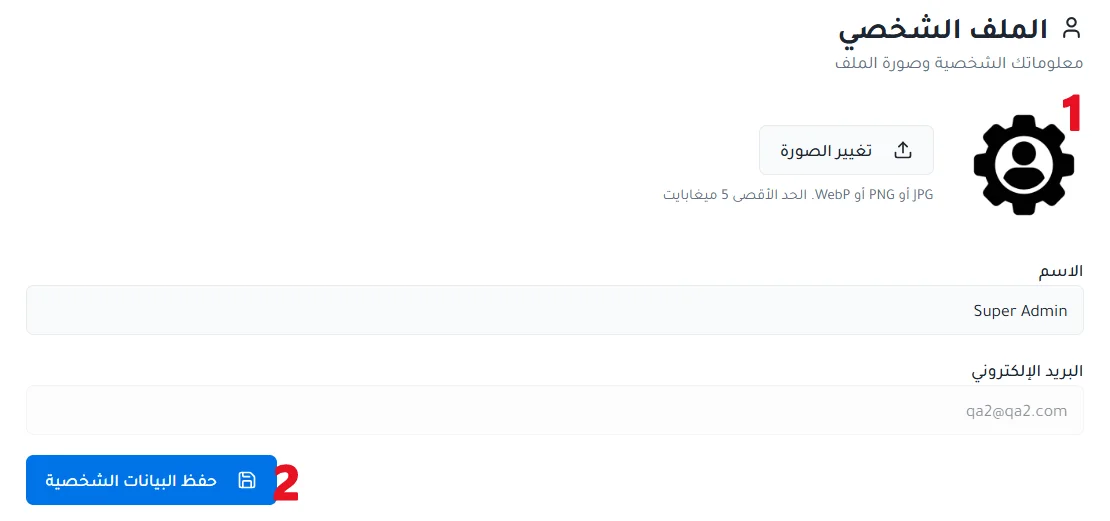
This card holds your personal information and profile picture:
Profile picture: you can upload a personal picture. WebP, PNG, and JPG are supported, up to 5 MB.
Name: edit the name that appears in the system and in reports.
Email: the email address cannot be edited.
Appearance
Customize the system's appearance for user comfort:
Light: bright lighting.
Dark: low lighting that helps reduce eye strain.
Automatic: follows the user's operating system settings.

Security
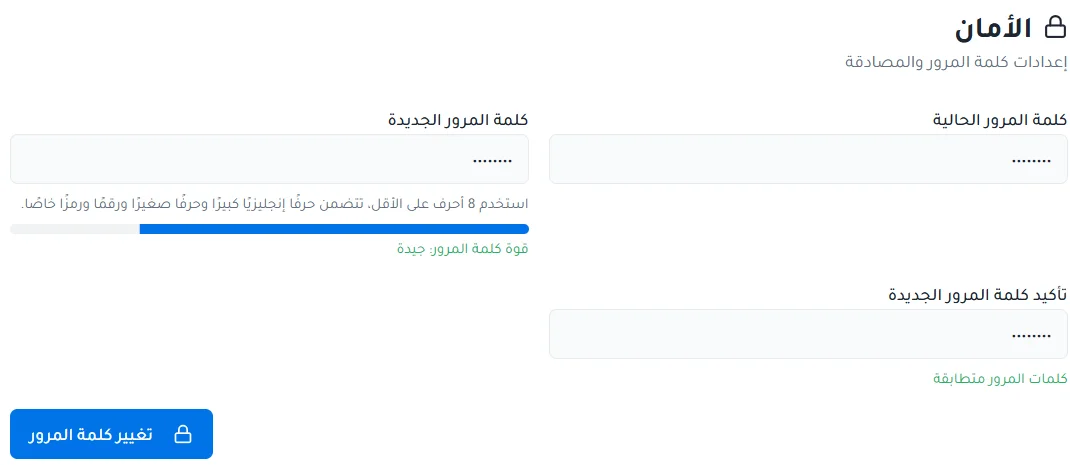
This card holds password and authentication settings. You can update your password with these steps:
Enter your current password.
Enter the new password and confirm it.
Preferences
This card holds language and time zone settings:
Language: choose the system interface language.
Time zone: set the local time so that exam times are synchronized accurately.

Quick notifications
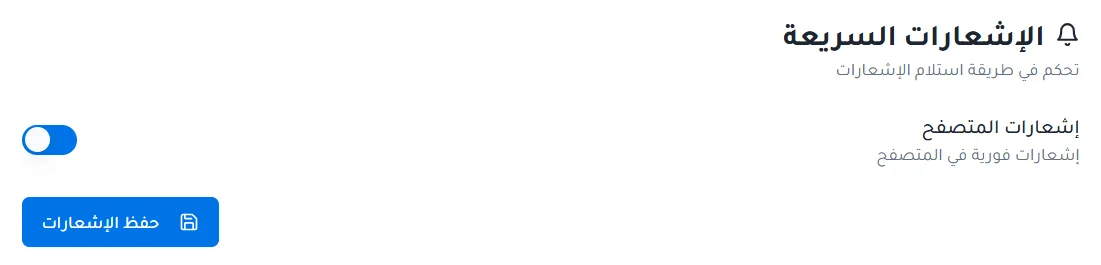
This card controls how you receive notifications:
Browser notifications: enable instant pop-up alerts while you use the browser.